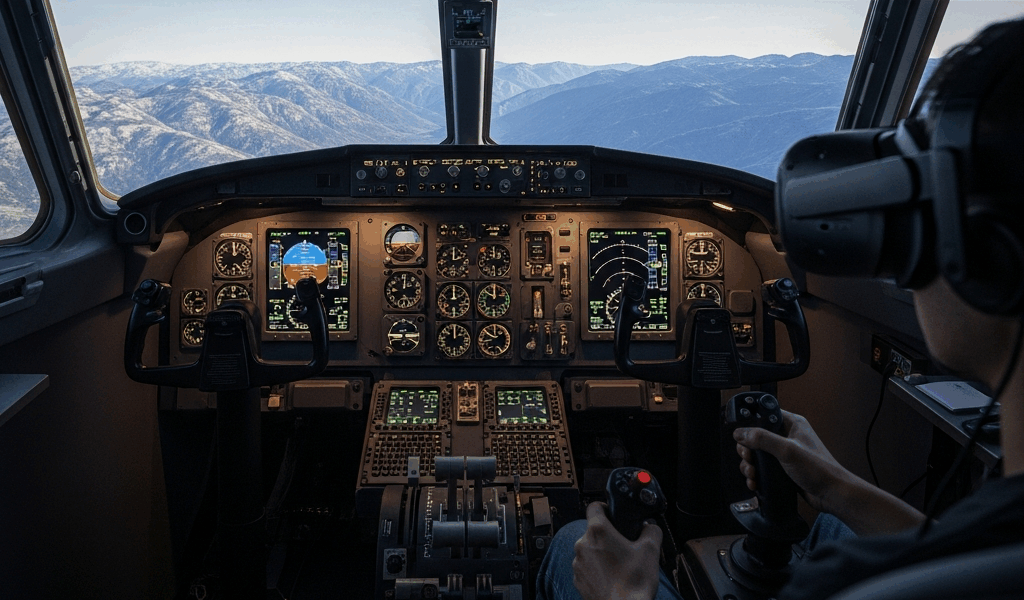
You finally got VR working in MSFS 2024 and it looks incredible for about fifteen seconds before the stuttering starts. The scenery hitches. The cockpit smears. Your stomach threatens mutiny every time you turn your head. The default settings are borderline unusable in VR on anything short of a top-tier system, and the in-game settings menu gives you zero guidance about what actually matters. Here are the specific settings that fix the stuttering — tested across multiple GPU tiers and headsets.
This article includes affiliate links. We may earn a commission at no extra cost to you.
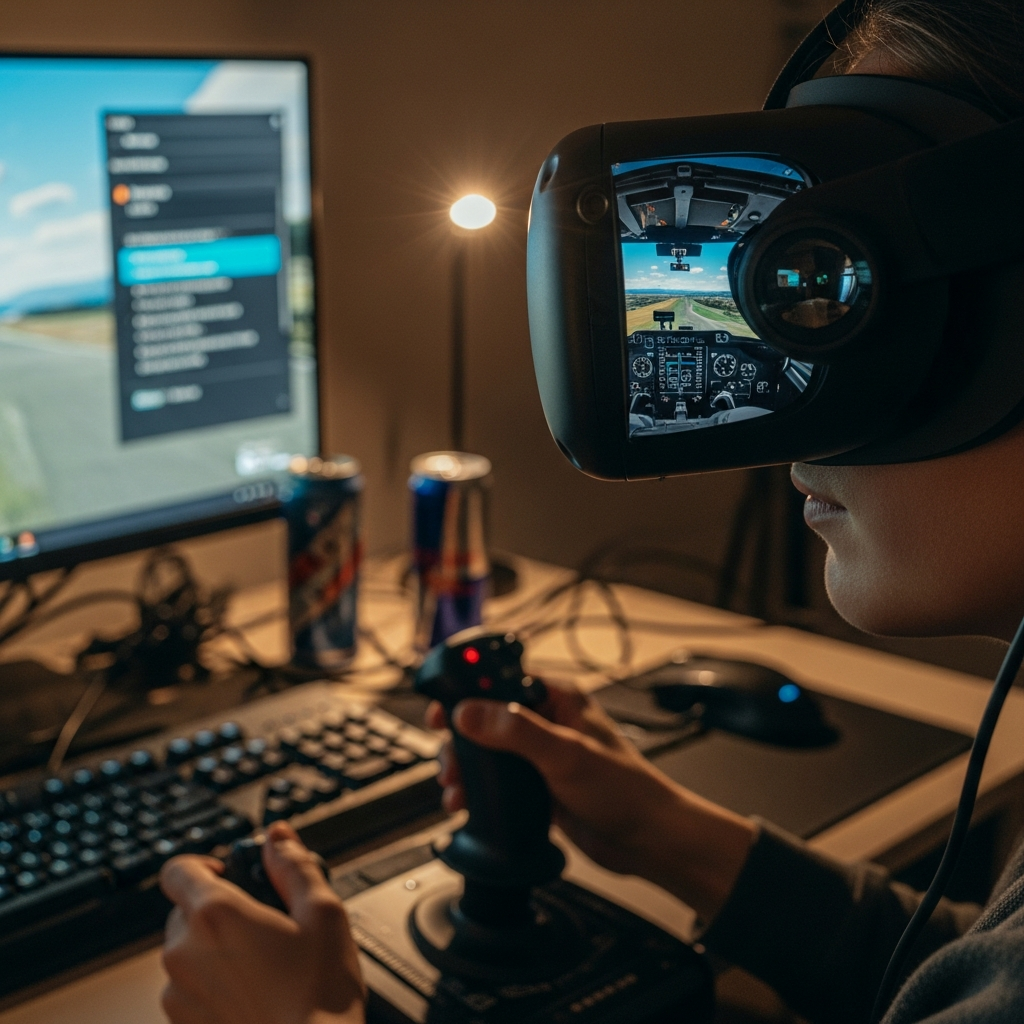
The Settings That Kill VR Performance
Before optimizing anything, you need to know which settings are eating your framerate. In MSFS 2024 VR, three settings cause more performance loss than everything else combined.
Displacement mapping is the single biggest VR performance killer. It adds surface texture depth to terrain — rocks look rockier, runways look more textured — but the performance cost in VR is catastrophic. Turning displacement mapping off alone can buy you 8 to 15 FPS depending on your GPU. That is often the difference between smooth and sick-making. Turn it off first and see if that alone solves your problem before touching anything else.
Traffic settings are the second major drain. Every AI aircraft, car, boat, and airport vehicle is a draw call your GPU has to process twice — once for each eye in VR. Set AI traffic to low or off. Set ground vehicle density to low. Enable “Use Generic Models” for AI traffic to reduce polygon counts. If you want to fly on VATSIM or IVAO with live traffic anyway, AI traffic is irrelevant.
Cloud detail is the third. Volumetric clouds in MSFS 2024 look stunning but they are computationally expensive in VR. Drop clouds from Ultra to High or Medium. The visual difference in VR — where you are looking through a compressed field of view — is minimal. The performance difference is significant.
First, determine whether you are GPU-bound or CPU-bound. Open the developer mode FPS counter (Options > General > Developers > set to On, then use the in-sim Dev Mode menu). If the “GPU” time is consistently higher than “MainThread” time, your GPU is the bottleneck and render settings matter most. If MainThread is higher, your CPU is the bottleneck and LOD, traffic, and AI settings are your targets.
Recommended VR Settings by GPU Tier
Mid-range (RTX 4070, RX 7800 XT): Render scaling 80%, DLSS Quality or FSR Quality, terrain LOD 100, object LOD 100, clouds Medium, displacement mapping OFF, volumetric lighting OFF. Target: 30-36 FPS with motion reprojection to 90 Hz. This tier requires trade-offs but delivers a playable experience.
High-end (RTX 4080, RX 7900 XTX): Render scaling 90%, DLSS Balanced, terrain LOD 150, object LOD 150, clouds High, displacement mapping OFF, volumetric lighting Low. Target: 36-45 FPS native or reprojected to 90 Hz. You can push clouds to High at this tier without major penalty.
Top-tier (RTX 4090): Render scaling 100%, DLSS Performance (counterintuitively — at native resolution with DLSS Performance you get better clarity than 80% render with DLSS Quality), terrain LOD 200, object LOD 200, clouds High, displacement mapping still OFF (even the 4090 takes a meaningful hit). Target: 45+ FPS native at most headset resolutions.
For all tiers: set glass cockpit refresh rate to Low (this controls how often the instrument screens redraw — Low saves CPU cycles without affecting readability). Set anisotropic filtering to 8x (above 8x has minimal visual benefit in VR). Texture resolution can stay at Ultra — it uses VRAM not GPU compute, so as long as you have 12GB+ VRAM it costs nothing.
OpenXR Toolkit and Auto FPS Setup
The OpenXR Toolkit is a free overlay that gives you VR-specific performance tools that the sim itself does not provide. Download it from the developer’s GitHub page and install the runtime. Once active, press Ctrl+F2 in VR to open the overlay.
Motion reprojection is the most important feature. It synthesizes intermediate frames so your headset displays 90 Hz even when the sim only renders 45 FPS. Enable this first. Set it to “Motion Vector” mode if your GPU supports it, otherwise use “Default.” The result is dramatically smoother head tracking without needing to actually render 90 frames per second.
Fixed foveated rendering reduces the render resolution in your peripheral vision where you are not looking directly. Set the inner ring to full resolution and the outer ring to 50-60%. The visual difference is nearly invisible because your eyes focus on the center of the lens, but the performance gain is 10-20% depending on the headset resolution.
Auto FPS is a separate tool (by the same developer community) that dynamically adjusts LOD and render scale in real time to maintain your target framerate. Install it, set your target to 36 FPS, and let it manage the balance between quality and smoothness during flights. It handles the dense airport environments and empty cruise altitudes differently — reducing quality when demand is high and increasing it when you have headroom.
Headset-Specific Tips
Meta Quest 3 via Link or Air Link: Set the Link encoding resolution to 3664×1920 in the Meta app settings. Higher encoding resolutions sharpen the image but increase latency. Air Link adds about 5ms of latency compared to wired — noticeable to some, invisible to others. Set the refresh rate to 90 Hz and use motion reprojection to hit it. Quest 3 benefits heavily from DLSS because the encoding pipeline is GPU-intensive on top of the render cost.
HP Reverb G2: The G2’s per-eye resolution is high (2160×2160), which means render scaling has a major impact. Start at 70% render scale with DLSS Quality and work up. The G2’s sweet spot is small, so foveated rendering is highly effective — your peripheral vision is already slightly blurry optically. Set OpenXR motion reprojection to On and target 45 FPS (reprojected to 90).
Pimax Crystal: High native resolution demands aggressive optimization. Start with render scale at 75%, DLSS Performance, and fixed foveated rendering at 50% outer ring. The Crystal benefits from Pimax’s own smart smoothing in addition to OpenXR reprojection — experiment with one or the other, not both simultaneously, as they can conflict.
Quick Reference Settings Card
Copy these into your sim and adjust from here based on your specific hardware:
Universal VR settings (all GPUs): Displacement mapping OFF. Glass cockpit refresh Low. AI traffic Low or Off. Ground vehicles Low. Use Generic Models ON. Anisotropic filtering 8x. Texture resolution Ultra (if 12GB+ VRAM). Motion blur OFF. Lens flare OFF.
Start here, adjust up: Render scale 80%. DLSS Quality (NVIDIA) or FSR Quality (AMD). Terrain LOD 100. Object LOD 100. Clouds Medium. Volumetric lighting OFF. Target 36 FPS with motion reprojection ON.
If you are consistently above 40 FPS, raise terrain LOD and clouds first — those have the biggest visual impact in VR. If you are below 30 FPS, drop render scale to 70% and set DLSS to Balanced before reducing anything else. Chase smoothness over beauty. A consistent 36 FPS reprojected to 90 Hz feels dramatically better than a variable 25-50 FPS with no reprojection.



Stay in the loop
Get the latest ultimate flight simulators updates delivered to your inbox.