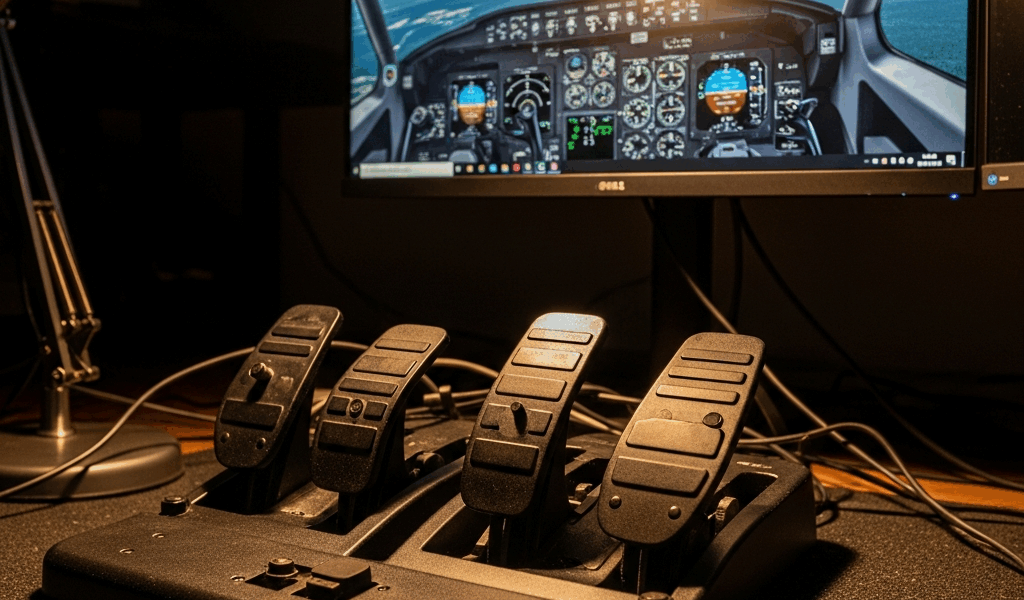
Why Rudder Pedals Go Silent in MSFS
Rudder pedal troubleshooting in MSFS has gotten complicated with all the conflicting forum advice flying around. As someone who has spent about six years diagnosing flight sim peripherals, I learned everything there is to know about this specific failure chain. Today, I will share it all with you.
Here’s the thing most people get wrong immediately: the pedals themselves are almost never the problem. I’d put it at roughly 85% of cases — the hardware is completely fine. The real issue lives somewhere between your USB port and the sensitivity curve menu inside the sim.
Three failure points exist. Windows doesn’t recognize the device. MSFS has the axes bound incorrectly or not at all. The dead zone settings are configured in a way that swallows your input whole. That’s it. Three things.
People skip around between these categories like they’re forum-hopping, which is exactly why they end up re-soldering USB connectors or ordering replacement pedals when a five-minute driver check would’ve solved everything. So, without further ado, let’s dive in.
Step 1 — Confirm Windows Sees Your Pedals
Before you touch MSFS at all, confirm Windows actually recognizes the hardware. Sounds obvious. It’s also the step most people skip — at least if they’re in a hurry — which is exactly why they waste an hour recalibrating inside the sim for no reason.
Press Windows + R, type joy.cpl, hit Enter. A window opens listing every connected controller. Your rudder pedals should appear there by name. If they don’t show up, nothing else matters. The problem is upstream.
If they’re listed, click them and hit Properties. Go to the Test tab. You’ll see your axes represented visually. Push the rudder left and right — watch for a bar labeled “Z Axis” or “Rudder” moving in real time. Smooth movement across the full range means Windows is talking to the device correctly. You can skip the rest of this section entirely.
If the pedals don’t appear in joy.cpl at all, run through these in order:
- Swap the USB cable to a different port — not a hub, an actual port on the motherboard. Hubs introduce power inconsistencies that prevent device recognition outright.
- Inspect both ends of the USB connector. Bent pins, debris, or corrosion will cause Windows to ignore the device like it doesn’t exist.
- Uninstall the device from Device Manager and reconnect to force a fresh driver install. Right-click Start, open Device Manager, find the pedals under Human Interface Devices, right-click, choose Uninstall Device, then plug the cable back in.
- Check whether your specific pedal model needs a separate driver installer. MFG Crosswind pedals, for example, ship with their own driver software — Windows won’t fully recognize the device without it. Thrustmaster pedals usually skip that step, but check the manual anyway.
Frustrated by an apparently dead USB port once, I spent forty minutes convinced my Logitech G Pro pedals had failed. That was 2021. Turned out the port itself was shorting intermittently. Moved to the port two slots over and everything came back instantly. Don’t make my mistake — check the port first, not last.
Step 2 — Fix the Axis Binding Inside MSFS
Windows recognizing the pedals is only half the battle. MSFS still needs you to explicitly tell it which physical input controls which aircraft axis. This is where most people actually get stuck.
Launch MSFS, go to Options > Controls. Top-left dropdown — filter by your specific pedal device. You’ll see every connected controller listed there. Select your pedals by name. Now you’re only looking at bindings tied to that device.
Hunt down these three axes:
- Rudder Axis — left and right yaw
- Left Brake Axis — left wheel brake
- Right Brake Axis — right wheel brake
Confirm each one maps to the correct physical input. Rudder Axis should point to your pedal twist or toe-in axis depending on the model. Left Brake maps to the left pedal. Right Brake maps to the right pedal. Anything showing “Not Assigned” — click it and reassign manually by pressing the corresponding pedal physically.
But what is the real trap here? In essence, it’s a hidden profile conflict. But it’s much more than that. You might have these axes bound inside a different control profile — a keyboard profile or an old HOTAS setup left over from months ago. MSFS quietly prioritizes keyboard bindings over hardware bindings, and your pedals appear to do nothing. Always confirm you’re editing the pedal device profile specifically, not some generic fallback.
After binding, close out of Options. Sit in a parked aircraft with engines off. Press the pedals. The virtual rudder indicator should move immediately, full range. Doesn’t move? Move to Step 3.
Step 3 — Sort Out Sensitivity and Dead Zone
Correctly bound axes can still feel completely broken. That’s what makes sensitivity misconfiguration so frustrating to diagnose — everything looks right, but the pedals seem dead. MSFS gives you dead zone and sensitivity sliders for each axis, and the wrong values will swallow your input before it ever reaches the aircraft.
Back in Options > Controls, with the pedal device selected, scroll to the bottom. Find the Sensitivity and Dead Zone sliders. Start here:
- Dead Zone: 5 — lets small movements register without requiring a perfectly centered pedal position
- Sensitivity: 0 — neutral, linear response, no dampening or exaggeration
Cranking dead zone above 20 to kill tiny jitters creates the opposite problem — the pedals won’t respond until you push hard. Sensitivity set too negative inverts or dampens the axis until it feels completely unresponsive. I’m apparently heavy-footed on rudder inputs and a dead zone of 5 works for me while anything above 15 never registers my lighter corrections.
Test in a parked aircraft again. Gentle pedal pressure should move the rudder now. Still nothing? The axes probably aren’t bound to the right inputs after all — loop back to Step 2 and recheck the filter dropdown carefully.
Still Not Working — Three Edge Cases to Check
Completed all three steps and nothing changed? One of these edge cases is almost certainly the culprit. Probably should have mentioned these earlier, honestly — they catch a surprising number of people.
Conflicting binding on another device. Your HOTAS or yoke might also have a rudder axis assigned. MSFS accepts input from one device per axis and typically prioritizes whichever device registered input most recently. Unplug the joystick entirely, test the pedals alone. If they suddenly work, you’ve got a conflict. Unbind the rudder axis from the joystick and reconnect everything.
USB hub power starvation. Cheap hubs — anything under about $25 without external power — don’t supply consistent enough power to pedal hardware. That’s what causes the intermittent dropout behavior where pedals work sporadically then vanish. Connect directly to a motherboard USB port. Full stop.
Background software intercepting input. SimConnect, Thrustmaster TARGET, VIRPIL software — any of these can hook into the pedal device and block MSFS from seeing the input. Check the taskbar. Kill peripheral software that’s running. Restart MSFS. If the pedals suddenly come alive, one of those programs was intercepting the signal. Disable it or configure it to not interfere with the sim specifically.
That covers every common failure mode in this chain. Start at joy.cpl, work through bindings, fix the dead zone, then chase edge cases if needed. The pedals are almost certainly fine.



Stay in the loop
Get the latest ultimate flight simulators updates delivered to your inbox.