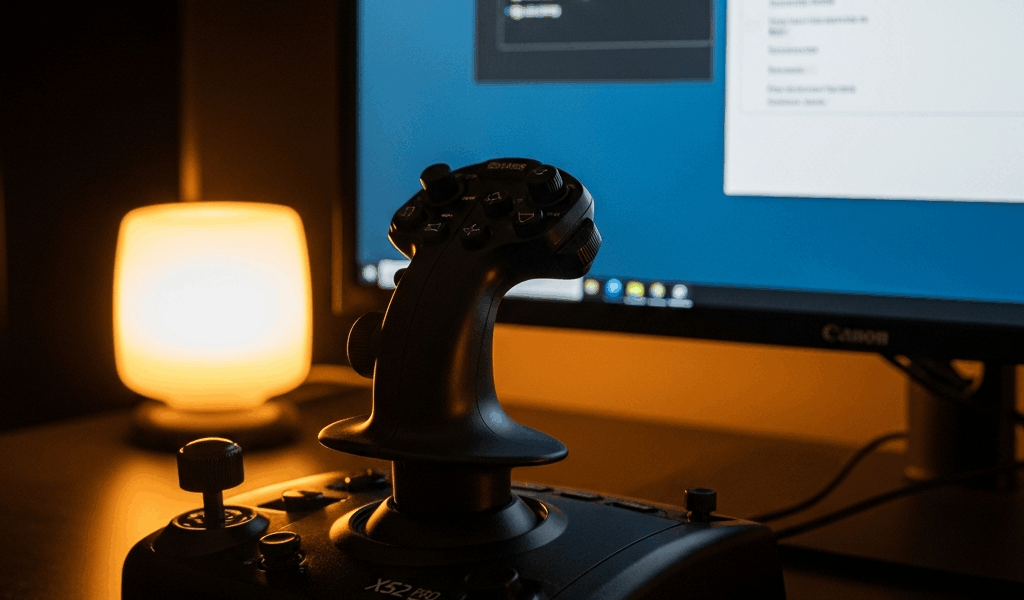
Logitech X52 Pro Not Working in MSFS — Fix It Now
Getting the X52 Pro to cooperate with MSFS has gotten complicated with all the conflicting advice flying around. Driver forums say one thing, Reddit threads say another, and meanwhile your joystick is sitting there doing absolutely nothing. As someone who spent three hours face-down in Device Manager troubleshooting my own X52 Pro setup last winter, I learned everything there is to know about this particular nightmare. Today, I will share it all with you.
The good news? Twenty minutes. That’s all this takes.
Why Your X52 Pro Goes Dead in MSFS
But what is actually breaking here? In essence, it’s one of three failure points. But it’s much more than just “joystick broken.”
First: driver conflict. Old Saitek drivers — yes, Saitek, the company Logitech absorbed — are still haunting your system, fighting the newer Logitech software for control of the same hardware ID. Second: MSFS sees the stick but hasn’t assigned a single axis to it. The device shows up in the controller list looking perfectly healthy while pitch, roll, yaw, and throttle are completely unbound. Third: Windows is quietly cutting power to your USB port mid-session through something called selective suspend.
Probably should have opened with this section, honestly. Most people reinstall MSFS entirely — 127 GB, gone — when the real problem is sitting two menus deep in Power Options.
Step One — Clean Up Your Drivers First
Press Windows key + X. Select Device Manager. Expand “Human Interface Devices.”
You’re looking for anything labeled Saitek, X52, or Logitech joystick. Two entries — say, “Saitek X52 Flight Controller” alongside “Logitech X52 Pro” — that’s your culprit right there. Right-click every Saitek entry and hit “Uninstall device.” Check the box for “Delete the driver software for this device.” Every single one. Don’t skip the ones that look harmless.
Now go straight to Logitech’s official support page — not a third-party driver site, not Amazon’s Q&A section. Search “X52 Pro.” Download Logitech G Hub, which is the current driver suite covering all their gaming hardware. Grab the 64-bit installer. You’re almost certainly on Windows 10 or 11, so that’s the one. Install it. Restart your computer. Non-negotiable.
After the restart, plug the X52 Pro into a USB 3.0 port — the blue ones — ideally on the back of your motherboard if you’re running a desktop. Front panel headers can have power delivery problems. Launch G Hub and let it find the stick. A firmware check will pop up. Allow whatever updates it suggests and wait for the green checkmark before touching anything else.
I’m apparently fussy about USB ports and the rear motherboard connection works for me while front panel headers never do. Don’t make my mistake of assuming all USB ports are equal.
Step Two — Assign Axes Inside MSFS
Launch the sim. Navigate to Options → General → Controls. At the top, type “X52 Pro” in the search filter to separate it from any other controllers you have plugged in.
Here’s the thing — MSFS will happily show the device as connected while binding exactly zero axes to it. Looks fine. Completely broken. Search “Pitch” in the bindings list and manually assign it to X52 Pro Pitch Axis. Do the same for Roll, Yaw, and Throttle. Each one should display “X52 Pro: [axis name]” with a green indicator once bound correctly.
When you move the stick forward and backward during binding, you should see the axis respond live on screen. That’s your confirmation the hardware is alive and communicating.
Open the Sensitivity panel next — still inside Controls. Dead zones should go low. I run 2% minimum on mine. Dead zones are the physical range your stick has to travel before the sim registers any input at all. Set them high and your plane handles like it’s flying through wet concrete, which people constantly misdiagnose as a broken stick. Start sensitivity at 100% and dial it back only after testing in actual flight.
Save before exiting. MSFS applies nothing without an explicit save. That’s a fun one to learn the hard way.
Step Three — Stop USB Drop-Outs Cold
This section is specifically for anyone whose stick works fine for twenty minutes and then vanishes mid-approach.
Windows runs a feature called USB Selective Suspend — it powers down USB devices during what it decides is idle time. It absolutely kills the X52 Pro on longer flights. Open Control Panel → Power Options → Change Plan Settings → Change Advanced Power Settings. Scroll to USB Settings → USB Selective Suspend Setting. Disabled. Click Apply. Restart.
Stick to a rear motherboard port, too. Unpowered USB hubs can’t supply enough current to run the X52 Pro’s LED lighting and motor functions simultaneously — the whole system browns out. A powered USB 3.0 hub actually solves this if you’re running several peripherals. Plug the hub into its power adapter, then connect the stick to the hub.
Laptop users — check your BIOS. Some machines, Dell and Lenovo especially, have aggressive power management that overrides Windows settings entirely. Search “[your exact laptop model] USB power management BIOS” and disable anything relevant there. The menu locations vary enough that I can’t give you one universal path, but it’s usually under Power Management or Advanced settings.
Still Not Working — Last Resorts
Run MSFS as administrator. Right-click the shortcut, go to Properties → Advanced, check “Run as administrator.” Windows permission layers occasionally block the sim from fully accessing peripheral input.
Check for firmware updates inside G Hub. Find the X52 Pro in the device list and look for a firmware section. Outdated firmware has caused axis detection failures in specific MSFS builds — it’s rare, but it happens.
Test the stick completely outside MSFS. Search “Game Controllers” in Windows search, select your X52 Pro, click Properties. You’ll get a live test screen showing every axis in real time. Move the stick through its full range in every direction. Smooth, responsive movement across all axes means the hardware is fine and your problem is purely inside the sim. Stuck or dead axes mean hardware failure — contact Logitech support about an RMA.
That’s what makes the X52 Pro endearing to us flight sim people — it’s a serious piece of hardware that just occasionally needs serious troubleshooting. So, without further ado, go check r/flightsim or r/logitech if you’ve hit something genuinely unusual. Post your Windows build, your exact error, and everything you’ve already tried.
Driver cleanup, axis assignment, or USB power settings — one of those three fixes this for 95% of users. Go fly.


Stay in the loop
Get the latest ultimate flight simulators updates delivered to your inbox.