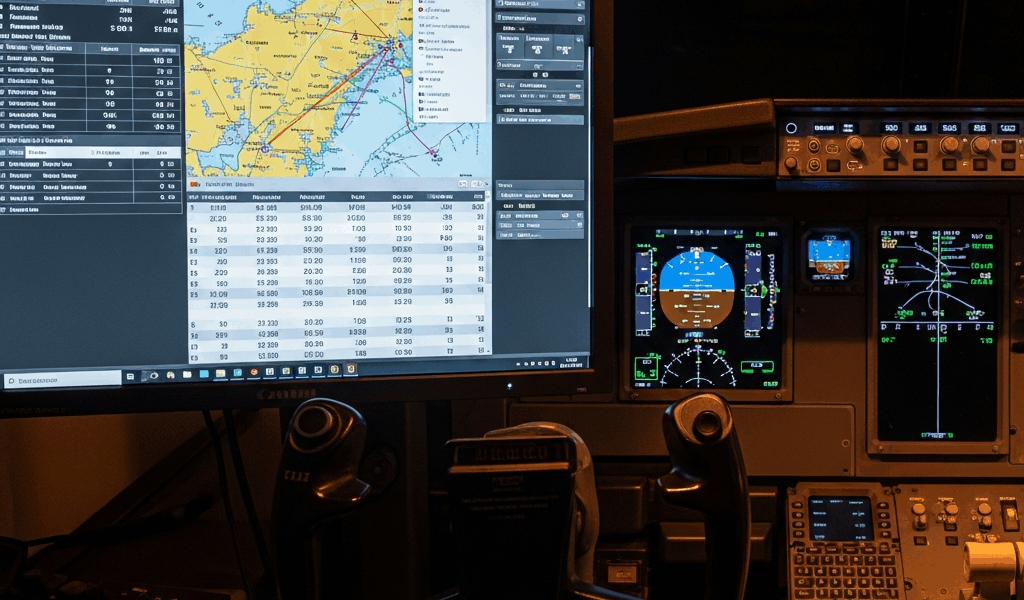
How to Use SimBrief With MSFS 2024 — Full Flight Planning Walkthrough
I’ve spent enough time in the MSFS forums watching people ask the same question across three different threads that I figured out flight planning integration the hard way. How to use SimBrief with MSFS 2024 seems straightforward until you’re staring at an empty FMC wondering why nothing imported. The good news: it works seamlessly once you understand the two paths and the account matching requirement — the thing that catches most people off guard.
What You Need Before You Start
You’ll need three things. A free SimBrief account (create one at simbrief.com if you don’t have it yet). A Navigraph subscription—the $4.99 monthly tier works fine. Yes, you do need it for the EFB import method. Most importantly, your SimBrief account must be linked to the same Navigraph account you log into inside MSFS 2024. This single detail stops cold about 40% of the import failures I’ve seen reported across forums.
The account linking happens on SimBrief’s settings page. Log in, click Preferences in the top menu, scroll to “Connect Navigraph Account,” and authorize the connection. Probably should have opened with this section, honestly. I wasted two hours before realizing my SimBrief account was linked to a Navigraph email and my sim was logged into something else entirely.
Building the Flight Plan in SimBrief
Start on the SimBrief homepage. Under “New Flight” you’ll see a big blue button. Click it. You’re now in the dispatch form, and the first three fields matter: Departure airport (ICAO code, like KJFK for New York), Destination (EGLL for London Heathrow), and Aircraft Type. This last one is critical. SimBrief needs to know what you’re flying. If you’re in the Fenix A320, select “A320” from the dropdown — not some generic variant.
Scroll past the basic fields. You’ll hit “Cruise Altitude” — set this to the flight level your route would actually use. FL350 for a 400nm flight. FL380 for longer hauls. Leave “Route” blank for now unless you already know your preference. SimBrief will generate one automatically. Down further you’ll find “Preferred Alternates” (optional but good practice — enter the nearest suitable airport to your destination). Hit “Dispatch” at the bottom of the form.
SimBrief generates a complete flight plan in about 30 seconds. You’ll see the Operational Flight Plan, a dense document with everything from fuel calculations to descent planning. Skim the top: check the assigned cruise level, fuel requirement (listed in pounds or kilos), and alternate airport. If something looks wrong — fuel way too high, an alternate that’s not realistic — go back and adjust. Most of the time it’s perfect as-is. The route string at the top is what matters for MSFS import. You’ll either let Navigraph grab it directly or copy it manually.
Importing Into MSFS 2024 via the EFB
This is the native path now. It’s genuinely slick if your aircraft supports it. In MSFS 2024, load your aircraft at your departure airport and advance the engines to where you can access the Electronic Flight Bag. Many study-level aircraft have an EFB button on the center console or a dedicated tablet. The Fenix A320, the PMDG 737, and the A2A Spitfire-class aircraft all support direct SimBrief import.
Open the EFB and look for a Navigraph or route planning icon. You’ll be prompted to log in with your Navigraph credentials. Once authenticated, the EFB should show “Fetch latest SimBrief flight” or similar language. Tap it. If your SimBrief account is linked correctly to this Navigraph login, your most recent flight plan appears. Select it and choose “Load to FMC” or “Import Route.” The aircraft’s flight management computer populates with your departure, destination, waypoints, and cruise level in seconds.
Quick check before you push back: review the SID (Standard Instrument Departure) and STAR (Standard Arrival Route) in the FMC. SimBrief provides the airways and fixes, but your actual airport procedures might differ depending on which runway you’re assigned. You’ll almost always need to manually confirm the SID/STAR matches your real departure and arrival clearance in the sim’s ATC. This is normal and expected — even real crews do this.
The .PLN Fallback for Aircraft Without Integration
Not every aircraft has a native EFB or SimBrief integration. This is where the .PLN file comes in, and it’s your workaround. Return to your SimBrief OFP page. Look for a download icon or “Download” button near the top. Look for the MSFS 2024 format, specifically labeled as such (it should say “MSFS 2024 native format” or similar). Download the .PLN file to your computer.
MSFS stores flight plans in a specific folder. Navigate to your MSFS community folder—typically located at C:Users[YourUsername]AppDataLocalPackagesMicrosoft.FlightSimulator_8wekyb3d8bbweLocalStatepackagesOfficialSteam. Inside, look for the “missions” folder. Paste your downloaded .PLN file directly into this directory. The exact path varies slightly depending on your installation, but that’s the standard location.
Start MSFS, click “World Map,” and look for a “Load Flight Plan” option. Select your .PLN file from the list. The sim loads your route, fuel, and initial heading. Once in the cockpit, you’ll still need to populate your FMC manually or use the autopilot’s navigation data from the pre-loaded plan. Some aircraft, like the older default 737, won’t auto-load everything. You’re checking the route on the glass and confirming altitudes match what SimBrief calculated.
Why Your Import Failed — the Three Usual Suspects
Your SimBrief plan didn’t show up in the EFB? First suspect: account mismatch. Verify you’re logged into Navigraph in MSFS with the exact same email address that’s connected to your SimBrief account. Log out of Navigraph in the sim entirely, then back in. Refresh the EFB. If it works now, you had a session cache issue. If not, go to simbrief.com, check your Navigraph connection under Preferences, and re-authorize it.
Second culprit: AIRAC cycle mismatch. SimBrief and MSFS pull navdata from different sources. They update on different schedules. If SimBrief is running AIRAC 2401 and your sim is still on 2312, the waypoints and airways might not align. The import fails silently or loads malformed data. Check MSFS’s navdata version in the main menu settings. Update MSFS if you’re behind. It’s rare but it happens. Pilots spend hours debugging it.
Third: importing the route twice and confusing yourself about which one worked. You download the .PLN file and dump it in the missions folder. Then you also try loading it via the EFB using the same linked account. Now you have two plans floating around, and you’ve loaded the wrong one into the FMC. Load one method or the other. Not both. If you use the .PLN fallback, don’t also pull the flight via EFB. Stick with World Map import only.
That’s the full workflow. SimBrief to MSFS is reliable once you nail these steps and dodge the account linking mistake that catches most people. The EFB method is cleaner if your aircraft supports it. The .PLN fallback works on everything. Pick your path, check your accounts, and you’re airborne.
Before starting the walkthrough, compare the current SimBrief, Navigraph, PFPX, and Little Navmap options so you know which planning and chart tools the workflow actually requires.




Stay in the loop
Get the latest ultimate flight simulators updates delivered to your inbox.