Why a Button Box Changes Everything
You’ve got your yoke, throttle quadrant, and maybe even rudder pedals. But every time you need to adjust the autopilot, flip a switch, or tune a radio frequency, you’re back to clicking with a mouse. A DIY button box eliminates that immersion-breaking moment—and building one costs a fraction of commercial alternatives.
What Exactly Is a Button Box?
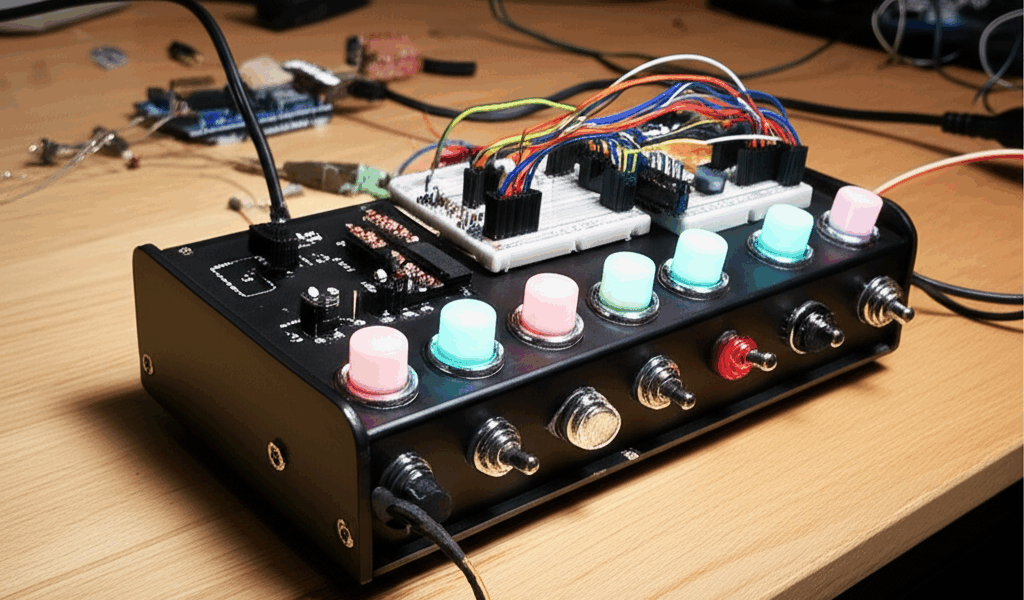
A button box is a custom-built controller with physical switches, buttons, rotary encoders, and toggles that map to functions in your flight simulator. Instead of hunting for the gear lever on screen, you flip a physical switch. Need to adjust heading? Turn a real knob. The tactile feedback transforms how you interact with your virtual cockpit.
Commercial options like the Logitech Multi Panel or Honeycomb Bravo Throttle Quadrant offer similar functionality but cost $150-$250 or more. A DIY button box with comparable features can be built for $30-$50 in parts.
Essential Components for Your Build
The Brain: Arduino or Similar Microcontroller
Most DIY button boxes use an Arduino Pro Micro or Leonardo because they can emulate a joystick natively. Windows sees it as a game controller without any driver installation. Budget around $8-$15 for a genuine Arduino or $3-$5 for a clone that works identically.
Switches and Buttons
- Toggle switches (ON/OFF or ON/OFF/ON) – $0.50-$2 each
- Momentary push buttons – $0.30-$1 each
- Rotary encoders with push function – $2-$5 each
- Illuminated switches for visual feedback – $2-$4 each
The Enclosure
You can use a project box from Amazon, 3D print a custom enclosure, or repurpose something creative like a cigar box or electrical junction box. Many builders use aluminum project boxes for a professional look.
Planning Your Layout
Before buying components, decide what functions you want to control. Common choices include:
- Landing gear – A satisfying toggle switch
- Flaps – Multi-position rotary or individual buttons
- Autopilot controls – HDG, ALT, VS, NAV, APR buttons
- Radio frequencies – Rotary encoders for COM/NAV tuning
- Lights – Toggle switches for landing, taxi, strobes, beacon
- Parking brake – A toggle with distinct feel
- View controls – Quick-look buttons for cockpit views
Sketch your layout on paper first. Consider grouping related functions and leaving space for future expansion.
The Build Process
Step 1: Drill Your Enclosure
Mark hole positions carefully. Measure twice, drill once. Start with smaller pilot holes before enlarging to final size. Most toggle switches need 6mm holes; standard push buttons typically require 12mm.
Step 2: Mount Components
Install switches and buttons before wiring. Most components secure with a nut on the inside. Leave enough room for wiring behind each component.
Step 3: Wire Everything
Each switch connects to a digital pin on the Arduino and a common ground. For buttons, wire one terminal to a GPIO pin and the other to ground. The Arduino’s internal pull-up resistors handle the rest.
Step 4: Program the Arduino
The Joystick library makes this surprisingly simple. Each button maps to a joystick button number, and rotary encoders can simulate button presses or axis movement. Sample code is freely available on GitHub and flight sim forums.
Step 5: Configure in Your Simulator
Once plugged in, your button box appears as a joystick in Windows. Open your simulator’s control settings and bind each button to its function.
Common Mistakes to Avoid
Using non-HID Arduino boards: The Uno and Nano don’t natively support USB HID, requiring additional software. Stick with Pro Micro or Leonardo.
Forgetting pull-up resistors: Floating inputs cause erratic behavior. Use INPUT_PULLUP in your code or add physical resistors.
Overcrowding the layout: Leave room for your fingers. Switches packed too tightly are frustrating to use.
Ignoring labeling: After the initial excitement fades, you’ll forget which button does what. Label everything clearly.
Taking It Further
Once you’ve built one button box, the addiction often continues. Advanced builders add:
- Seven-segment displays showing altitude, heading, or radio frequencies
- LED indicators for gear position or autopilot status
- Analog axes for mixture, prop, or cowl flaps
- Multiple boxes for different cockpit sections
The MobiFlight software bridges the gap between simple button boxes and full instrument panels, allowing integration with simulator data for truly interactive displays.
Is the Effort Worth It?
Building a button box requires perhaps 4-8 hours over a weekend, assuming you’re comfortable with basic soldering. The result is a custom controller perfectly suited to your flying style, built for a fraction of commercial prices, with the satisfaction of having created something yourself.
That physical click when you retract the gear after takeoff? Worth every minute of the build.



Stay in the loop
Get the latest ultimate flight simulators updates delivered to your inbox.