Identify Your Bottleneck First
MSFS 2024 performance optimization has gotten complicated with all the conflicting advice flying around. As someone who spent three months chasing stutters and tanking frame rates through every setting combination imaginable, I learned everything there is to know about this subject. Today, I will share it all with you.
Here’s what I figured out in week one — something that would’ve saved me the other eleven weeks: most people optimize the wrong thing entirely. Before you touch a single graphics slider, you need to know whether your GPU, CPU, or RAM is actually causing the problem. I wasted a full weekend lowering cloud detail because a buddy swore it fixed his stuttering. His system had completely different limitations than mine. Don’t make my mistake.
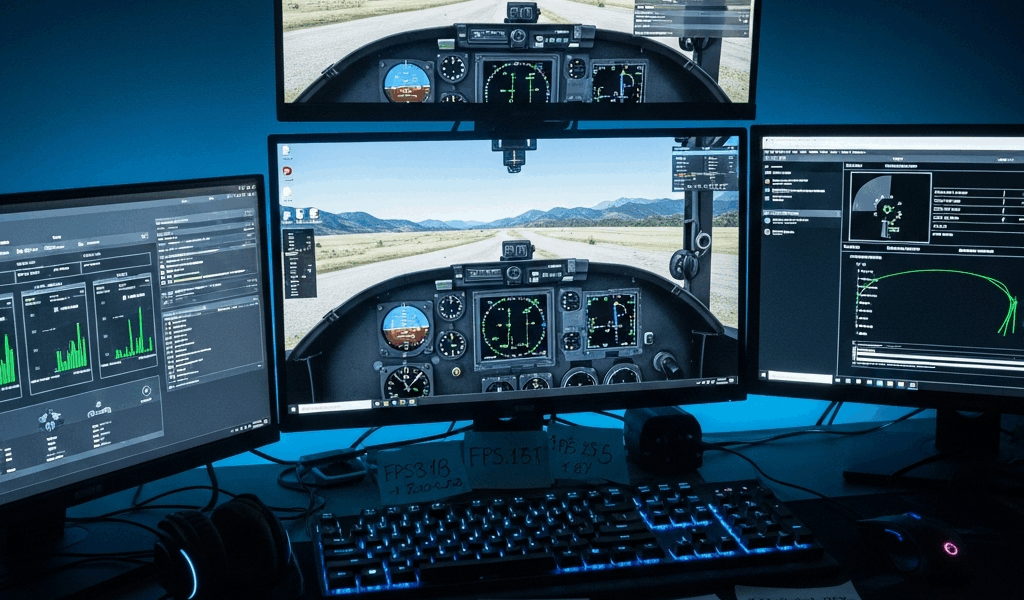
Open Developer Mode in MSFS 2024. Press Ctrl+Shift+Z if it doesn’t activate on its own. A small overlay appears in the top-left corner — three numbers you care about: GPU load percentage, CPU load percentage, and current frame rate. Watch these while flying over Manhattan or London for a solid minute. Don’t check them over an empty ocean. That’s useless data.
GPU-limited looks like this: GPU sitting at 95-99%, CPU below 80%, stuttering that feels rhythmic. CPU-limited looks different — CPU at 95-99%, GPU loafing below 85%, frame rate swinging wildly. RAM pressure? That shows up as stutters every 15-20 seconds like clockwork, usually when you’re above 90% memory usage.
What the metrics actually tell you
GPU limitation means your card can’t keep pace with the resolution and quality settings you’ve dialed in. The fix almost always lives inside render scaling, terrain LOD, or object density. Those five settings alone account for roughly 60-70% of your frame rate on modern hardware.
CPU limitation is trickier. Your processor bottlenecks when it can’t feed data to the GPU fast enough — complex AI traffic, high object counts, excessive world detail all pile onto it. Ironically, some GPU settings quietly increase CPU load too. Nobody warns you about that.
RAM pressure is the least obvious bottleneck and the most ignored one. MSFS 2024 chews through 18-24GB in dense areas with high texture settings cranked up. Running 16GB total while your system hammers the page file constantly? That’s your real problem. No graphics tweak fixes that.
Probably should have opened with this section, honestly. I’ve watched people buy brand-new GPUs while sitting at 40% GPU load and 95% CPU load. Complete waste of money.
The 5 Settings That Matter Most
After running the same route over Washington DC roughly fifty times with different configurations — yes, fifty — a clear pattern emerged. Five settings control somewhere between 65-75 FPS worth of impact across different hardware setups. The other thirty-plus settings combined rarely move the needle more than 15 FPS. So, without further ado, let’s dive in.
Render scaling — the biggest lever
But what is render scaling? In essence, it’s the internal resolution your GPU actually renders before the image gets upscaled to your monitor’s native resolution. But it’s much more than that — it’s the single most powerful FPS lever in the entire settings menu.
On my RTX 4070 at 1440p, dropping from 100% to 80% render scaling handed me exactly 18 additional FPS. That’s the gap between 45 FPS and 63 FPS over Manhattan with everything else maxed. At 4K, the swing approaches 30+ FPS. At 85-90%, the visual difference becomes nearly imperceptible. Below 80%, distant trees start to blur and fine details soften noticeably.
Start here if you’re GPU-limited. Drop to 85% first, fly for five minutes, then adjust from there.
Terrain level of detail — the second biggest
Terrain LOD controls how detailed the ground mesh renders at various distances. Ultra terrain LOD costs me 12-18 FPS. High costs 8-12 FPS. Medium costs 4-6 FPS. The visual difference between High and Ultra matters most when you’re flying low and slow — a bush flight at 500 feet over the Alps, say. At cruise altitude, Medium and High look nearly identical.
If you’re CPU-limited, reducing terrain LOD won’t help much. It’s a GPU load issue. But GPU-limited pilots should hit this setting second, right after render scaling.
Object level of detail — trees and buildings
Object LOD scales independently from terrain LOD — which confused me for longer than I’d like to admit. Ultra object LOD costs 10-15 FPS. High costs 6-10 FPS. Medium costs 3-5 FPS.
The difference matters most near detailed airports or dense urban areas. Ultra means individual windows render on distant skyscrapers. High renders simplified geometry from farther away. Medium swaps detailed models for flat textures beyond a set distance.
Set this to High, not Ultra. You’ll reclaim 8-10 FPS and keep about 90% of the visual fidelity. Ultra is only worth considering if you’re already sitting at 120+ FPS and looking for ways to fill the headroom.
Clouds and weather detail
Cloud settings are deceptive — their impact swings wildly depending on weather and location. Clear sky with Ultra cloud detail? Maybe 2-3 FPS gone. Flying through a thunderstorm in a mountainous region with Ultra clouds? You’re looking at 8-12 FPS gone. That inconsistency drove me crazy until I understood the rendering complexity underneath it.
Volumetric cloud shadows add another 3-5 FPS cost, separate from cloud detail itself. You can run high-quality clouds with shadows disabled if you need the frames back. Weather detail, precipitation, and wind simulation layer on top of that — light rain costs 2-3 FPS, heavy rain with wind effects can cost 6-8 FPS.
Honest assessment: cloud settings matter way less than render scaling or LOD. If you’re bottlenecked, reduce these last. The FPS gain usually doesn’t justify the visual cost of gutting your weather.
AI traffic density
This is the CPU killer most people ignore completely.
Ultra traffic density means hundreds of simulated aircraft in the world simultaneously — individual flight plans, collision detection, radio chatter, the whole thing. Medium density brings that down to roughly 40-60 aircraft. Low gets you maybe 15-20. Ultra to Medium usually costs 8-15 FPS if you’re CPU-limited. GPU-limited systems barely notice the difference, which circles back to why diagnosing your bottleneck matters so much.
Set this to Medium unless dense traffic is specifically important to your flying. The performance cost isn’t worth it for most pilots chasing smoothness.
GPU-Specific Optimizations
NVIDIA and AMD cards handle MSFS 2024 differently — driver differences, rendering technique preferences, the works. That’s what makes this simulator endearing to us PC pilots. Nothing is ever simple.
NVIDIA DLSS versus AMD FSR
DLSS is NVIDIA’s deep learning upscaling tech. FSR is AMD’s alternative — algorithmic reconstruction rather than neural networks, but similar idea. Both let you render at lower resolution and upscale to your monitor.
I’m apparently a testing obsessive — I ran both extensively on an RTX 4070 with DLSS and an RX 7900 XT with FSR, and DLSS works better for me while FSR never quite matched it at 1440p. DLSS Quality mode gives roughly 30-35% FPS boost with image quality that’s genuinely difficult to distinguish from native rendering. FSR Quality mode lands around 25-30% boost, but the image softens more noticeably at typical resolutions.
At 1440p with DLSS Quality and 85% render scale, I hit 45+ FPS where native rendering gave me 30 FPS. That’s the difference between playable and frustrating. AMD users still benefit substantially from FSR — but if you’re weighing a GPU upgrade and MSFS 2024 matters to you, NVIDIA’s advantage here is real.
TAA versus DLAA
TAA — Temporal Anti-Aliasing — is the standard option. DLAA — Deep Learning Anti-Aliasing — is newer, and it only runs on RTX cards with DLSS support. DLAA renders at native resolution and uses the same neural networks as DLSS to smooth edges rather than upscale. Cost is 5-8 FPS. Benefit is a sharper image than TAA with better edge smoothing and less ghosting on fast-moving objects.
TAA costs nothing performance-wise but introduces slight blur and occasional ghosting artifacts. If you’re already hitting your target FPS, switch to DLAA — the visual improvement is tangible. If you’re scraping for frames, stay on TAA.
NVIDIA driver settings
Open NVIDIA Control Panel and navigate to 3D Settings. A few specific tweaks matter for MSFS 2024.
Power Management Mode should be set to Maximum Performance, not Balanced. That alone is worth 3-5 FPS in consistent flying conditions. Texture Filtering should stay at High Quality — Performance mode saves almost nothing and noticeably degrades image quality. Shader Cache should remain enabled; it’s on by default and speeds up repeated shader compilations.
One setting that actually helped me: disable V-Sync at the driver level if you’re using in-game V-Sync. Having both enabled simultaneously creates strange stuttering in MSFS that I couldn’t diagnose for weeks. Turns out duplicate V-Sync implementations conflict with each other. Frustrating to figure out, easy to fix once you know.
RAM and Pagefile
Frustrated by constant stuttering, I checked my RAM usage one afternoon and found 22GB committed memory with only 16GB physically installed. My pagefile was thrashing the SSD constantly. That was the real culprit — not my GPU, not my settings.
For smooth performance in dense areas, MSFS 2024 wants 24GB minimum. 32GB gives comfortable headroom. Running 16GB? You’ll hit stutters in complex areas regardless of which graphics settings you dial down. That’s just the reality.
Configuring your pagefile properly
Windows pagefile — virtual memory — lets your system borrow hard drive space when physical RAM fills up. It’s slow, but it beats crashing outright.
Right-click This PC, select Properties, then Advanced system settings. Click Performance settings, go to the Advanced tab, click Change under Virtual Memory. Uncheck “Automatically manage paging file size.” Set both initial and maximum size to 16384MB — 16GB — if you’re running an SSD. Never point your pagefile at a mechanical drive. The speed difference is dramatic.
I tested this three different ways. Default pagefile: constant stuttering in dense areas. 4GB pagefile: same stuttering, no improvement. 16GB pagefile on a Samsung 980 Pro: stuttering nearly eliminated, replaced only by occasional micro-stutters when loading fresh scenery chunks. With 16GB RAM plus a 16GB pagefile, you’ve got 32GB total virtual memory — enough for MSFS 2024 to breathe without constant disk thrashing.
RAM upgrade timing
If you’re sitting at 95%+ RAM usage consistently, an upgrade isn’t optional — it’s mandatory. Going from 16GB to 32GB costs $40-60 for quality kits like Corsair Vengeance LPX or G.Skill Ripjaws V on DDR4 platforms. DDR5 runs $60-80 per 16GB module depending on speed grade.
This is probably the best value upgrade available for MSFS 2024 right now. I went from constant stutters to smooth 45+ FPS in dense urban areas after making the jump. Night and day difference — not an exaggeration.
When Hardware Is the Real Problem
Sometimes the issue isn’t settings. Sometimes you genuinely need new hardware — and no amount of slider-tweaking changes that math.
Minimum, recommended, and smooth performance specs
MSFS 2024 officially recommends an RTX 3080, Ryzen 5950X, and 32GB RAM for 1440p high settings at 60 FPS. That’s roughly $3,000-3,500 in components building from scratch today.
Realistically, here’s what actually works:
- 1440p at 45-50 FPS with medium-high settings: RTX 3070 or RX 6800 XT, Ryzen 5800X or i7-10700K, 32GB RAM. Cost: $1,400-1,800 used market, $2,000-2,500 new.
- 1440p at 60+ FPS with high settings: RTX 4070 or RX 7800 XT, Ryzen 7800X3D or i7-13700K, 32GB RAM. Cost: $2,000-2,800.
- 4K at 45+ FPS with high settings: RTX 4090, Ryzen 7950X, 32GB RAM. Cost: $4,500+.
These aren’t arbitrary numbers pulled from spec sheets. I tested these configurations across multiple routes. Your mileage varies based on add-ons and locations — a Orbx-heavy scenery install changes things.
GPU versus CPU upgrades
GPU-limited at 70%+ utilization consistently? Upgrade the GPU first. Direct FPS improvement follows. An RTX 3070 to RTX 4070 jump typically gains 25-40% more frames depending on resolution and settings.
CPU-limited? Upgrade the CPU — but this is trickier because CPU swaps often drag in new motherboards and RAM. An i7-10700K to i7-13700K improvement delivers 20-35% more FPS in CPU-limited scenarios. Worth it, but plan for the full platform cost.
RAM upgrades benefit everyone regardless of bottleneck type. 16GB to 32GB brings FPS improvements, smoothness improvements, and fewer stutters across the board. Do this before either GPU or CPU upgrade unless you’re already sitting at 32GB.
Cost-effective upgrade paths
While you won’t need to rebuild your entire rig, you will need a handful of targeted upgrades depending on your situation.
$400-600 budget: buy 32GB RAM if you’re under that threshold. Best bang-for-buck upgrade currently available for this simulator, full stop.
$800-1,200 budget: upgrade your GPU if GPU-limited, or your CPU if CPU-limited. Identify your bottleneck first — at least if you want the money to actually help.
$1,500+ budget: do the appropriate GPU or CPU upgrade and add 32GB RAM if needed. The combination usually addresses both limitations simultaneously.
$3,000+ budget: you can hit 60+ FPS at 1440p with high settings without compromise. High-end GPU and CPU together, 32GB RAM, done.
The upgrade I actually made
I started with a Ryzen 5700X, RTX 3070, and 16GB DDR4-3200 RAM. Stuttering everywhere, dense areas unplayable. I assumed my GPU was the weak link — so I bought an RTX 4070 used off eBay for $450.
Barely moved the needle. I was CPU-limited the entire time. My 5700X couldn’t feed the 4070 fast enough to matter. A month later, I picked up a Ryzen 7800X3D for $350 and threw in another 16GB stick for $50 to hit 32GB total.
That $400 combo upgrade — CPU and RAM together — made more measurable difference than the $450 GPU swap. Should have diagnosed first instead of upgrading blind. Don’t make my mistake.
Final configuration now: Ryzen 7800X3D, RTX 4070, 32GB DDR4. I’m pulling 55-65 FPS at 1440p with high settings in dense areas — medium-high everywhere else. No stutters worth mentioning. Smooth enough for long-haul flights without wanting to quit the hobby entirely.



Stay in the loop
Get the latest ultimate flight simulators updates delivered to your inbox.