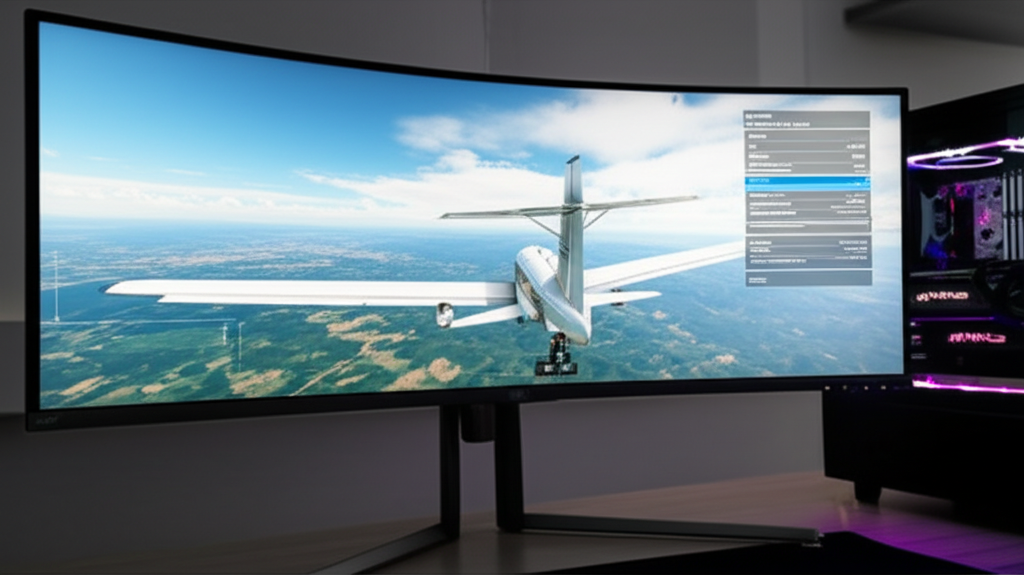
The Performance Balancing Act
Microsoft Flight Simulator 2024 is one of the most demanding applications ever created for consumer hardware. Even high-end systems struggle to maintain 60 FPS at maximum settings. The good news? You can achieve smooth performance without turning your simulator into a blurry mess. These settings deliver the optimal balance between visual quality and frame rate.
Understanding the Bottlenecks
Before tweaking settings, identify your bottleneck. Press the Developer Mode overlay (enable in Options > General) to see real-time performance metrics. The key indicators:
- MainThread (CPU): If this number is higher than GPU, you’re CPU-limited
- RenderThread (GPU): If higher than MainThread, you’re GPU-limited
- CoherentGT: Glass cockpit and UI rendering—can spike during complex displays
Most users find themselves GPU-limited in external views and CPU-limited in detailed cockpits. Your optimization strategy depends on which component holds you back.
The High-Impact Settings
Render Scaling (Biggest Impact)
This multiplier affects the internal resolution before output. At 100%, you render at native resolution. Dropping to 80-90% dramatically improves performance with minimal visible quality loss, especially at 1440p or 4K. This should be your first adjustment if GPU-limited.
Terrain Level of Detail
Controls ground mesh detail and undulation. Values above 200 provide diminishing returns while heavily impacting performance. Set to 100-150 for excellent ground detail without unnecessary overhead. This affects both CPU and GPU.
Object Level of Detail
Determines building, vehicle, and scenery object complexity. Similar to terrain LOD, the 100-150 range offers the best quality-to-performance ratio. Extreme values mainly affect approaches to photogrammetry cities.
Volumetric Clouds
Arguably the simulator’s most impressive visual feature—and most demanding. Options range from Low to Ultra:
- Low: Flat, unrealistic clouds but huge performance gain
- Medium: Acceptable cloud formations, good performance
- High: Beautiful clouds, noticeable performance impact
- Ultra: Stunning but brutally demanding
High represents the sweet spot for most users. Ultra is reserved for screenshot sessions or extremely powerful hardware.
Settings with Moderate Impact
Glass Cockpit Refresh Rate
How often cockpit displays update. High settings hammer the CPU. Medium (Low if desperate) maintains readable instruments while freeing CPU headroom. This matters most in modern aircraft with complex avionics.
Ambient Occlusion
Adds subtle shadowing where surfaces meet. The visual improvement is modest while the performance cost is real. Medium provides nice depth cues; disable if hunting frames.
Shadow Quality
Affects sun shadows throughout the world. Medium looks nearly identical to Ultra in motion. Low produces harsh, pixelated shadows noticeable in the cockpit.
Reflections
Water and surface reflections. High produces beautiful results; Ultra adds marginal improvement for significant cost. Medium is acceptable for performance builds.
Settings You Can Safely Reduce
Lens Effects: Bloom and light shafts look cinematic but cost performance. Medium or Low rarely disappoints.
Anisotropic Filtering: Texture sharpness at angles. Modern GPUs handle 16x with minimal impact, but dropping to 8x is invisible in motion.
Texture Resolution: High is sufficient unless you have abundant VRAM (12GB+). Ultra textures consume memory without proportional visual improvement.
Motion Blur: Personal preference. Many pilots disable it entirely—there’s no performance penalty either way, but it can mask frame rate issues.
The Nuclear Options
Still struggling? These settings deliver major gains with visible quality trade-offs:
Photogrammetry: Disabling replaces 3D city scans with autogen buildings. Huge performance improvement in dense areas, but you lose landmark accuracy.
Traffic Settings: AI aircraft and vehicles impact CPU significantly. Reduce or disable if flying solo anyway.
Rolling Cache: A properly configured rolling cache (8-16GB on an SSD) reduces repeated data streaming but won’t improve raw frame rates.
Recommended Presets by Hardware
RTX 3060/RX 6600 (Mid-range):
- Render Scaling: 90%
- LODs: 100
- Clouds: Medium-High
- Global Preset: Medium base, tweak from there
- Target: 30-40 FPS
RTX 3080/RX 6800 XT (High-end):
- Render Scaling: 100%
- LODs: 150
- Clouds: High
- Global Preset: High base
- Target: 40-50 FPS
RTX 4080/4090 (Enthusiast):
- Render Scaling: 100-110%
- LODs: 200
- Clouds: Ultra
- Global Preset: Ultra base, reduce outliers
- Target: 50-60 FPS
Frame Generation and DLSS
MSFS 2024 supports DLSS 3 frame generation on RTX 40-series cards. This technology interpolates additional frames, effectively doubling perceived smoothness. The results are impressive:
- Enable DLSS in quality mode for best balance
- Frame generation adds latency—fine for flight sim, problematic for combat
- Requires game-ready drivers updated for MSFS
AMD’s FSR 3 offers similar functionality for Radeon users, though implementation quality varies.
The Bottom Line
Flight simulation has different requirements than competitive gaming. Consistent 40 FPS with smooth frame times often feels better than fluctuating 50-60 FPS. Prioritize stability over peak numbers.
Start with the High preset, monitor your bottleneck, and adjust accordingly. The settings above give you a roadmap to maintaining visual fidelity while keeping your hardware happy. Your perfect configuration exists somewhere between these guidelines and your personal tolerance for visual compromise.


Stay in the loop
Get the latest ultimate flight simulators updates delivered to your inbox.