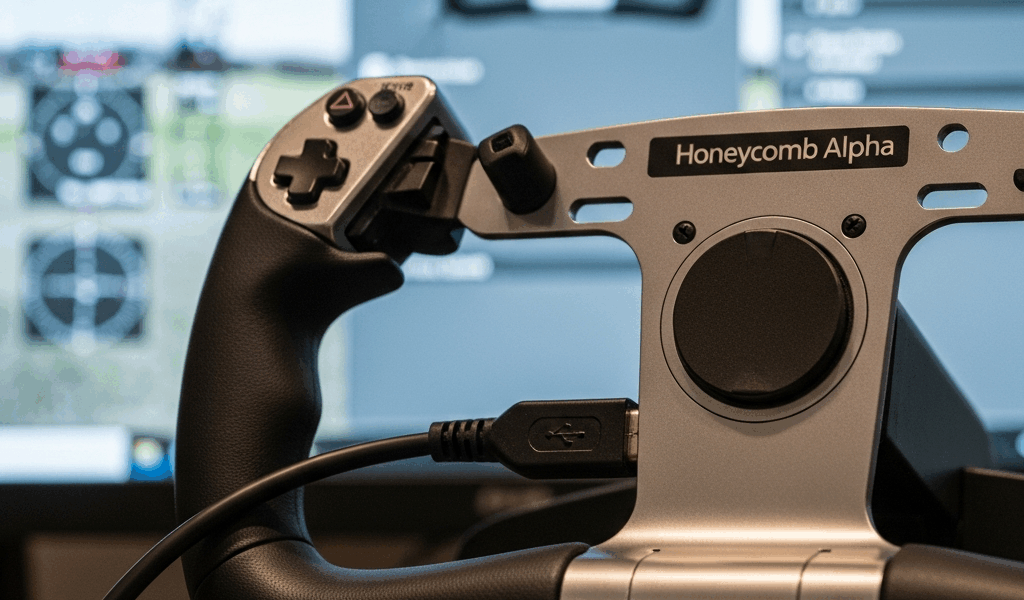
Honeycomb Alpha Yoke Not Recognized — Fix It Now
Flight sim hardware has gotten complicated with all the USB compatibility noise flying around. As someone who has spent five years deep in flight sim setups, I learned everything there is to know about why the Honeycomb Alpha goes dark on Windows. Today, I will share it all with you.
You plugged it in. Maybe restarted twice. Still nothing. And you’re sitting there staring at a $350 yoke that’s supposed to be the easiest plug-and-play option on the market. I’ve been there — at 2 AM in a Discord server, no less, watching three different people hit this exact wall. The good news: honeycomb alpha yoke not recognized failures are almost never a dead unit. USB negotiation weirdness, stale firmware, or a blank MSFS profile. That’s your culprit, almost every time.
Why the Honeycomb Alpha Goes Unrecognized
But what is a “not recognized” failure, really? In essence, it’s your computer seeing the device but failing to shake hands with it properly. But it’s much more than that — it’s usually one of three specific things stacked on top of each other.
First: USB 3.0 enumeration conflicts. The Alpha is an older HID device design. Newer motherboards don’t always negotiate cleanly with it on the first attempt. Second: firmware that’s either corrupted from a bad flash or just out of date. Third: Windows driver cache pollution — or MSFS loading a blank profile even though Windows itself can see the yoke just fine.
That’s it. No mystery. The device works. The handshake doesn’t. That’s what makes the Alpha endearing to us sim enthusiasts — it’s fixable hardware, not cursed hardware. So, without further ado, let’s dive in.
Step 1 — Fix USB and Power Delivery Issues First
Move the Alpha to a USB 2.0 port. I know. It sounds ridiculous in 2024. Do it anyway.
USB 2.0 ports usually live on the back I/O panel of your motherboard — sometimes labeled in blue on older boards, sometimes not labeled at all. If you genuinely can’t find one, grab a powered USB hub. The Anker PowerExpand 7-in-1 runs about $35. The Belkin F4U040 is around $28. Either works. Plug the yoke into the hub, not directly into your PC. The hub’s own power adapter handles delivery. That matters more than you’d think.
The Alpha’s firmware speaks a slightly older dialect. USB 2.0 is slower, sure — but it talks to legacy HID devices without the negotiation arguments USB 3.0 controllers sometimes pick.
Before you move anything, open Device Manager. Right-click Start, hit Device Manager, expand “Universal Serial Bus controllers.” Yellow exclamation marks or “Unknown Device” entries confirm your port sees the yoke but can’t load drivers. That’s useful information.
Also — unplug everything else. Rudder pedals, button boxes, trim wheels. All of it. Don’t make my mistake. I once had my entire rig go silent because a cheap $8 USB extension was running four devices simultaneously off one port. The power draw killed the whole chain. The yoke wasn’t the problem at all. Probably should have started troubleshooting there, honestly.
Step 2 — Reinstall or Update Honeycomb Firmware and Drivers
Head to honeycombaeronauatics.com and download the PC Control Panel software. This handles firmware flashing, axis calibration, and driver installation in one place. Install it to your C drive — not a custom path, not a network drive. C drive. Default settings.
Launch it. Plug in the Alpha if it isn’t already. The software should detect it immediately. If it doesn’t, you’re still fighting a USB issue — try another port or the powered hub from Step 1.
Once detected, find the Firmware section. Check your current version number. Honeycomb pushes updates sporadically — sometimes to patch Windows 11 driver signing issues specifically. The latest release is usually something like “Alpha_Firmware_v2.4.8.zip.” Download it, extract it, and follow the on-screen flash process. Three to five minutes, typically.
Windows 11 users — heads up. You might hit a driver signing verification error mid-flash. If you see anything like “cannot install unsigned driver,” restart into Safe Mode before you try again. Hold Shift, click Restart, go to Troubleshoot > Advanced Options > Startup Settings, restart. Flash it from Safe Mode. Works every time.
You’ll watch a progress bar fill. When it finishes, the software says something like “Flash Successful.” The yoke disconnects for a few seconds, then reconnects. That’s normal. That’s correct. You didn’t break it.
Step 3 — Force MSFS to Detect and Assign the Alpha
Launch Microsoft Flight Simulator. Go to Options > Controls. This is where most people quietly lose their minds — because even with the yoke fully detected by Windows, MSFS sometimes loads a blank or generic profile instead of reading your hardware correctly.
Create a new control profile from scratch. Name it “Honeycomb Alpha” or whatever you’ll recognize later. Do not import an existing profile. Fresh start only.
Once created, MSFS will prompt you to assign devices. Select the Honeycomb Alpha from the dropdown. Then assign your axes — Pitch and Roll should not say “Null” or “None.” Find the correct axis entries in the dropdown for each. If those dropdowns show nothing at all, the application still isn’t reading the device. Loop back to Step 1 or Step 2.
Move the yoke while you’re in the control configuration screen. The on-screen indicator should respond in real time. If it does — save, close, fly. First, you should test every axis this way — at least if you want to catch a misconfigured roll axis before you’re already in a flight session wondering why your plane won’t bank.
I’m apparently someone who skipped this screen entirely for two weeks and blamed firmware. The fresh profile fix was it for me while every other fix never touched the actual problem. Don’t make my mistake.
Still Not Working — Advanced Fixes and When to Contact Honeycomb
A registry flush might be the best option at this point, as the Alpha issue sometimes requires clearing corrupted HID driver cache entries at the system level. That is because Windows occasionally writes bad driver references that survive normal reinstallation entirely.
Open Command Prompt as Administrator. Run this:
reg delete "HKEY_LOCAL_MACHINE\SYSTEM\CurrentControlSet\Services\HidUsb" /v UpperFilters /f
Restart. This is a last-resort move — it’s system-level and it’s blunt. But when driver pollution is the culprit, it clears the path completely.
Still nothing after that? Contact Honeycomb support directly. Have your firmware version ready — check the PC Control Panel. Know your Windows version. Find your USB controller model in Device Manager under USB controllers and write it down. Screenshot your Device Manager showing the Alpha entry, whatever state it’s in. Send all of that in your first message. It saves days of back-and-forth.
While you won’t need to send your unit in immediately, you will need a handful of screenshots and version numbers to move the support process forward efficiently. Most Honeycomb Alphas ship with a two-year warranty. If you’re inside that window and you’ve worked through these steps, replacement or advanced troubleshooting is very much on the table.
Real talk: about 95% of honeycomb alpha yoke not recognized cases close at Step 1 or Step 2. The remaining 5% are hardware defects or extremely specific OS-level conflicts. You’re probably in the 95%.




Stay in the loop
Get the latest ultimate flight simulators updates delivered to your inbox.