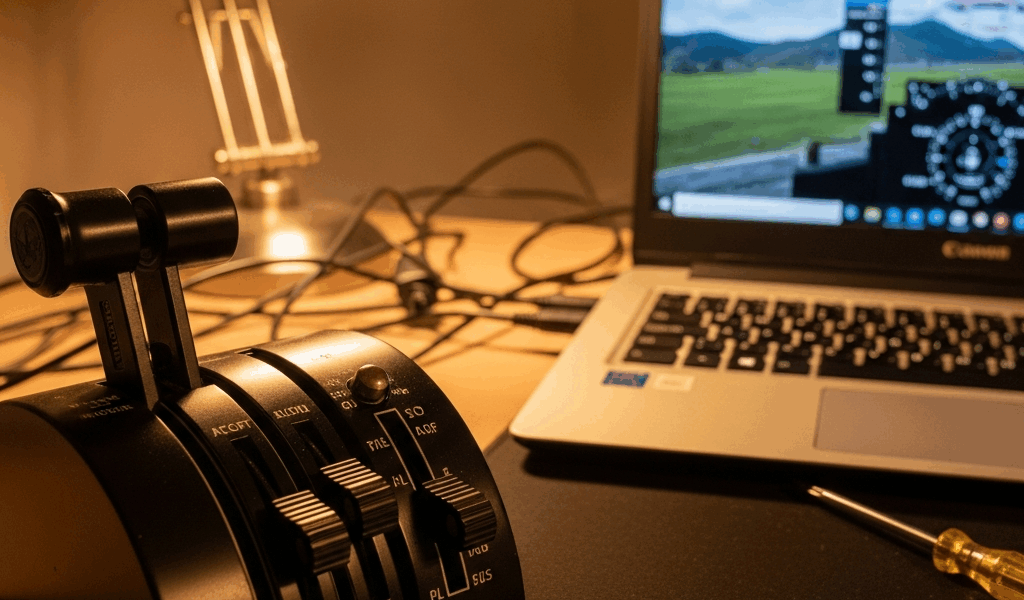
If the Honeycomb Bravo levers and buttons work but the landing-gear or annunciator lights do not, the most likely issue is the simulator-specific LED software, not axis calibration. Honeycomb currently provides different downloads for Microsoft Flight Simulator 2024, MSFS 2020, and X‑Plane 11/12. Install only the package for your simulator and operating system from Honeycomb’s official downloads page, follow its included instructions, and test with a default aircraft.
If the axes and buttons also fail, diagnose USB recognition first. Sensitivity, null zones, and throttle bindings cannot repair output lights, and an LED package cannot fix a device Windows or macOS does not see.
Identify the exact symptom
| Symptom | Likely layer | First test |
|---|---|---|
| Axes/buttons work; all gear/annunciator LEDs stay off | Missing, wrong, blocked, or inactive simulator LED package | Verify the exact official package and simulator version |
| Gear lights work; some annunciators do not | Aircraft data, profile, plugin, or feature support | Test a default aircraft and documented state change |
| No axes, buttons, or LEDs | USB cable, port, power/data connection, OS recognition, or hardware | Test outside the simulator |
| Works until sleep/reconnect | USB reconnection, software startup order, or power management | Cold reconnect and relaunch using documented order |
| Lights flicker when the plug moves | Cable or physical connector | Stop moving it; inspect and try a known-good data cable |
| One aircraft fails but another works | Aircraft-specific data or profile | Check that aircraft developer’s Bravo support |
Step 1: confirm controls work before troubleshooting lights
On Windows, open the Game Controllers panel by running joy.cpl. Select the Bravo and verify that levers, buttons, switches, and rotary inputs register. On macOS, use the simulator or a trusted controller test appropriate to the operating system.
This test checks input. It does not prove that output LEDs or simulator integration are working. The lights receive state from simulator software; they are not simply another joystick button.
If the device is missing:
- Close the simulator.
- Disconnect and inspect both ends of the USB cable and the Bravo port.
- Reconnect directly to a known-good computer USB port.
- Try a known-good cable that supports data, not a charge-only cable.
- Test another port without forcing or repeatedly wiggling the connector.
- If possible, test on another compatible computer before concluding the quadrant failed.
Do not search for a supposed universal Honeycomb COM port or copy an unverified vendor/product ID. The Bravo is a USB Human Interface Device, and Windows may display its components differently by version. Diagnose the actual device shown on your system.
Step 2: download only from Honeycomb’s current page
Use the official Honeycomb Downloads page. As checked in August 2026, it separates:
- Microsoft Flight Simulator 2024: a Landing Gear LED driver listed for the Bravo Throttle Quadrant;
- Microsoft Flight Simulator 2020: a separate Landing Gear LED driver;
- X‑Plane 11 & 12: separate Windows and Mac downloads.
The MSFS 2024 and MSFS 2020 links are not interchangeable. Do not install an old forum mirror because its filename resembles a current driver. Avoid third-party “driver updater” tools.
Step 3: follow the package instructions exactly
The download may contain an installer, plugin, bridge, application, or files placed in a simulator-specific location. The included readme and current Honeycomb support instructions are authoritative. Installation paths can change between simulator generations.
- Exit the simulator and related configuration tools.
- Back up any custom profiles or files the instructions say will be changed.
- Install the package for the exact simulator and operating system.
- Allow the installer through operating-system security only when the file came from Honeycomb’s official link and its publisher/signature is expected.
- Restart the helper, simulator, or computer if the package instructions require it.
- Confirm any helper process or plugin the documentation expects is actually loading.
Do not copy instructions for an obsolete “AFC Bridge” layout into MSFS 2024 unless Honeycomb’s current package explicitly uses that structure. Likewise, do not delete the entire Community or plugins folder to fix one integration.
Step 4: test with a default aircraft
Use a default aircraft with conventional retractable landing gear. Start in a known state, then change the gear position after the simulator is fully loaded. Allow for an in-transit indication. Do not use a fixed-gear aircraft to test gear LEDs.
For annunciators, create one clear state change at a time—for example, parking brake, low fuel, or another indication that the simulator and aircraft expose. The exact lights available depend on the integration and aircraft. A custom add-on may use proprietary variables that a generic package does not read.
If the Bravo works with the default aircraft but not a third-party aircraft, the USB device is not the first suspect. Check that aircraft developer’s current Honeycomb profile, variables, documentation, and support forum.
Step 5: separate control bindings from LED output
Duplicate throttle or mixture bindings can make an aircraft respond incorrectly, but they do not normally explain why every output LED is dark. Likewise, changing sensitivity from 0 to 100 percent does not activate the annunciator panel.
Review bindings only after device recognition and the proper LED package are confirmed. Save a copy of the working profile before resetting anything. Test one axis or switch at a time and remove only verified conflicts.
Step 6: check USB stability without applying blanket fixes
If the Bravo disconnects after sleep or during a flight, review Windows Event Viewer or device status where practical, test another cable/port, and remove unnecessary USB devices for one controlled test. A powered hub can solve one system’s power limitation and introduce another system’s compatibility problem, so “always use a hub” and “never use a hub” are both poor rules.
Windows USB selective suspend can be tested as a possible cause, but disabling it globally is not the first step and increases power use. Prefer the narrowest reversible change supported by Microsoft and the computer manufacturer. Record the original setting and restore it if the test makes no difference.
Front-panel ports are not inherently invalid, and rear ports are not guaranteed. Use the connection that remains stable and meets the computer and Honeycomb specifications.
Step 7: check security and startup blocking
If an official helper is installed but not running, check whether Windows Security, macOS privacy controls, antivirus software, or a controlled-folder policy blocked it. Review the actual alert or log before adding an exclusion. Never disable security protection broadly to make a controller work.
Launch the simulator and helper with the privilege level documented by the vendor. Running one as administrator and the other as a standard user can sometimes isolate processes; running everything as administrator is not a responsible default.
Step 8: reinstall narrowly
If the official LED package previously worked and is now damaged:
- Back up custom profiles.
- Use the package’s own uninstaller or Honeycomb’s documented removal method.
- Restart if instructed.
- Download a fresh copy from Honeycomb.
- Reinstall only that integration and test before restoring custom changes.
Do not select “delete driver software” for every Human Interface Device in Device Manager. That can affect keyboards, mice, panels, and other controls. Do not flash firmware unless Honeycomb publishes a firmware package for the exact hardware revision and the instructions say it addresses the symptom.
MSFS 2024 checklist
- Bravo inputs register outside the simulator.
- The MSFS 2024 Landing Gear LED driver came from Honeycomb’s current downloads section.
- The package was installed with the simulator closed.
- Any required helper/plugin loads without a security error.
- A default retractable-gear aircraft was used for the test.
- The failure is reproduced without custom aircraft or profile assumptions.
MSFS 2020 checklist
- Use the separately listed MSFS 2020 LED package.
- Do not assume a 2024 package belongs in the same location.
- Check old Honeycomb integration files only according to the current readme.
- Test a default retractable-gear aircraft before reinstalling profiles.
X‑Plane 11/12 checklist
- Choose the official Windows or Mac package shown under X‑Plane 11 & 12.
- Verify the plugin appears in X‑Plane’s plugin environment and loads without an error.
- Check the X‑Plane log for the actual plugin message rather than guessing.
- Test a default aircraft, then investigate aircraft-specific datarefs or profiles.
What if only one or two LEDs fail?
If most indications work, a total driver failure is less likely. Confirm that the simulator state truly calls for the light and that the selected aircraft exposes the expected variable. Compare with a default aircraft.
If the same physical LED never illuminates across supported aircraft, simulators, and documented tests while neighboring LEDs work, record the behavior and contact Honeycomb support. Do not open the unit while it is under warranty or energized.
When to contact Honeycomb
Contact Honeycomb Support when:
- the unit is not recognized with multiple known-good data cables and compatible computers;
- the USB connector is loose, damaged, hot, or intermittent when untouched;
- the official package reports a repeatable installation or signature error;
- one physical LED never works under a documented supported test;
- the device disconnects repeatedly after cable, port, and software isolation;
- you need the correct package for a hardware revision or console configuration.
Include the hardware model/revision, operating system, simulator and version, official package version, aircraft tested, screenshots, relevant logs, and the troubleshooting steps already performed.
Bottom line
If controls work but Bravo lights do not, install or repair the official simulator-specific LED integration and test a default aircraft. If controls also fail, isolate the USB connection before changing profiles. Do not chase invented COM ports, universal hardware IDs, axis sensitivity, random firmware, or broad driver deletion.
Honeycomb currently lists distinct MSFS 2024 and MSFS 2020 landing-gear LED packages and separate X‑Plane Windows/Mac downloads. Starting with the correct branch is the fastest safe fix.



Stay in the loop
Get the latest ultimate flight simulators updates delivered to your inbox.