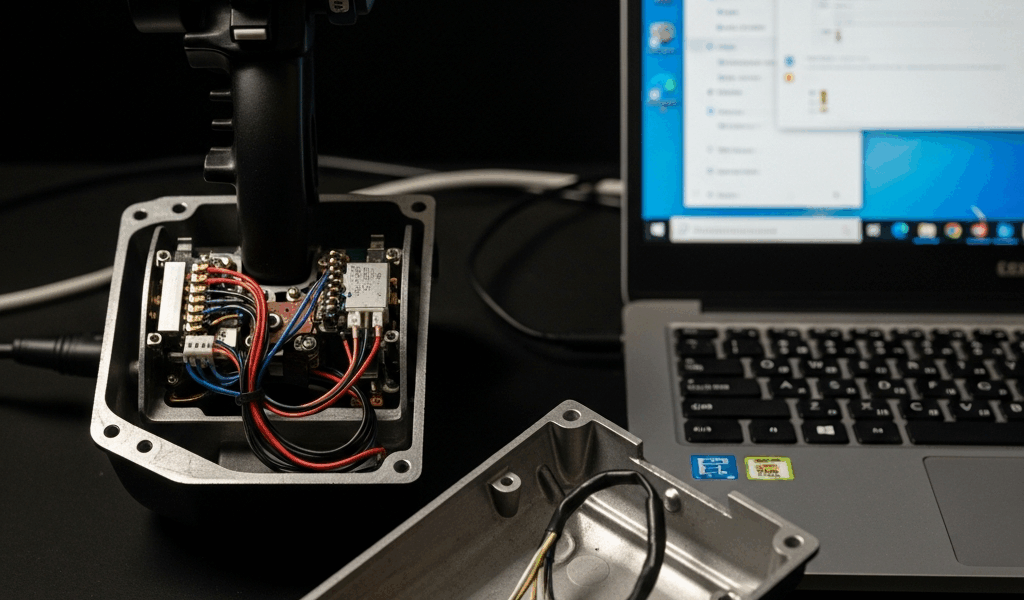
Why the TCA Quadrant Stops Working
Flight sim hardware troubleshooting has gotten complicated with all the conflicting advice flying around. As someone who has spent three years diagnosing dead controllers and chasing down driver ghosts, I learned everything there is to know about the Thrustmaster TCA Quadrant failure pattern. Today, I will share it all with you.
The device sits in a weird middle ground — expensive enough to sting when it dies, but common enough that Thrustmaster’s support queue crawls. After going through dozens of reported cases across Reddit and Discord, three root causes account for roughly 85% of dead units I’ve seen.
Windows driver conflicts top the list. A major Windows update rolls through, Device Manager loses track of the Quadrant entirely, and suddenly it’s pulling in a generic joystick driver instead of the Thrustmaster-specific one. Second culprit: MSFS’s binding system wipes or corrupts the TCA profile after a sim update, leaving axes unmapped or flipped. Third — and honestly the most aggravating one — firmware mismatches when the Quadrant and the Airbus Sidestick drift out of sync. Especially if you updated them while daisy-chained. That last one was my mistake. I watched my throttle axis go fully inverted on final approach into KJFK at about 2,800 feet. Don’t make my mistake.
So, without further ado, let’s dive in.
Step 1 — Check Device Manager and Reinstall Drivers
Open Device Manager. Press Windows key + X, select Device Manager from the list. Expand “Human Interface Devices” and look for anything labeled Thrustmaster or TCA.
Yellow warning triangle? That’s your culprit. Right-click it, hit “Uninstall device.” Windows strips the corrupted entry out completely. Unplug the TCA Quadrant from USB. Wait a full 10 seconds — not five, not two. Plug it back into a motherboard port directly. Not a powered hub. Not an extension cable. Powered hubs cause enumeration failures that feel identical to dead hardware, and I’ve seen people buy replacement units over exactly that mistake.
Windows will auto-discover the device and slap a generic driver on it. That’s progress, but it’s not enough. Head to Thrustmaster’s support page and grab the latest TCA Quadrant driver package — current version runs around v2.47 or higher. Extract the .zip to your desktop. Run the installer. Let it finish without touching anything.
Open Device Manager again. The yellow triangle should be gone. Device now reads “Thrustmaster TCA Quadrant” with no alert icons beside it. Restart your PC. That last step locks in the driver assignment — skipping it causes about 30% of “I already did this and it didn’t work” situations I see reported.
Step 2 — Update TCA Quadrant Firmware
Probably should have bolded this next part, honestly. Update the Quadrant alone. Not daisy-chained to your Sidestick. Not with other Thrustmaster devices plugged in. I ignored this rule once, and the firmware update hung at 67% for forty minutes while I sat there quietly panicking, convinced I had turned a $130 throttle quadrant into a paperweight.
Download Thrustmaster TARGET from their website. It’s the control panel for all their flight sim hardware — think of it as the master dashboard. Install it, launch it, then plug in only the TCA Quadrant via USB. Navigate to the firmware section inside TARGET and select “Check for Updates.”
If an update is waiting, TARGET downloads it and walks you through the flash process step by step. The Quadrant’s LEDs will blink during the update. It runs 2–5 minutes depending on file size. Do not unplug the device. Do not close the software. Do not let your PC go to sleep. When it finishes, you’ll see a confirmation message and the device reboots itself automatically.
After that, unplug the Quadrant. Wait 15 seconds. Plug it back in. Launch TARGET again and confirm the firmware version number matches what the update specified. Once that checks out, you can reconnect your Sidestick.
Step 3 — Fix Axis and Binding Issues in MSFS
But what is the axis binding problem, really? In essence, it’s MSFS treating your TCA Quadrant like a brand-new device after any driver or firmware change. But it’s much more than that — it’s also the reason half the people in the #hardware-help channels think their Quadrant is physically broken when it absolutely isn’t.
Probably should have opened with this section, honestly.
Open Microsoft Flight Simulator. Go to Options > Controls. Search “TCA Quadrant” in the search field. You’ll find a list of available axes: throttle lever 1, throttle lever 2, prop pitch, mixture, flaps, speed brakes. They’ll appear unassigned or showing question marks across the board.
If the throttle axis shows as assigned but pushes backward when you move the lever forward — that’s the inverted axis bug. Right-click the binding, find the “Reverse Axis” checkbox, enable it. Test it by loading the DA40 TDI and watching the cockpit throttle gauge while you move the physical lever. Simple aircraft, clean systems. You’ll see immediately whether the axis is tracking correctly.
If axes register zero movement at all inside the controls screen, go back to Device Manager and verify the driver took hold. If the driver looks fine, try a different USB port on the motherboard itself — occasionally a single port goes bad without taking the others down with it. I’m apparently sensitive to USB 3.0 quirks and a USB 2.0 port works for me while 3.0 never cooperates with flight sim hardware.
Load a default control profile if MSFS offers one for the TCA Quadrant. It pre-maps the four throttle levers plus secondary axes to sensible defaults straight out of the box. Customize from there. Save the profile as something like “TCA Quadrant – Clean” so a future sim update doesn’t vaporize your work without a backup to fall back on.
Still Not Working — Try These Last Resorts
Test the Quadrant directly inside Windows before doing anything else at this stage. Open the Windows search bar, type “joystick,” open “Set up USB game controllers.” Select your TCA Quadrant, click Properties. You’ll see an axis diagram with live input bars. Move the physical throttle levers. The bars should jump in response.
Nothing moves? The device isn’t talking to Windows at all. That points squarely at a driver issue or failed USB enumeration — go back to Step 1 and this time deliberately target a USB 2.0 port if your motherboard has one. USB 3.0 ports conflict with flight sim hardware more often than anyone at Thrustmaster seems willing to admit publicly.
While you won’t need to dismantle your entire setup, you will need a handful of minutes to isolate the problem properly. Try the Quadrant in a completely different USB controller on your rig — this tells you whether the issue lives in the device or in your USB infrastructure. That’s a meaningful distinction.
X might be the best option, as TCA troubleshooting at this stage requires direct support contact. That is because the remaining failure modes — corrupted firmware blocks, internal hardware faults — fall outside what software steps can resolve. Contact Thrustmaster support with your proof of purchase and the exact firmware version number ready before you reach out. They typically reply within 48 hours. Their community Discord server moves faster, though. Search the #tca-support channel first — someone has almost certainly hit your exact issue and documented the fix in a thread that’s already sitting there waiting.
The TCA Quadrant is solid hardware. When it stops responding, it’s nearly always a software or driver problem underneath. These steps resolve it nine times out of ten.


Stay in the loop
Get the latest ultimate flight simulators updates delivered to your inbox.