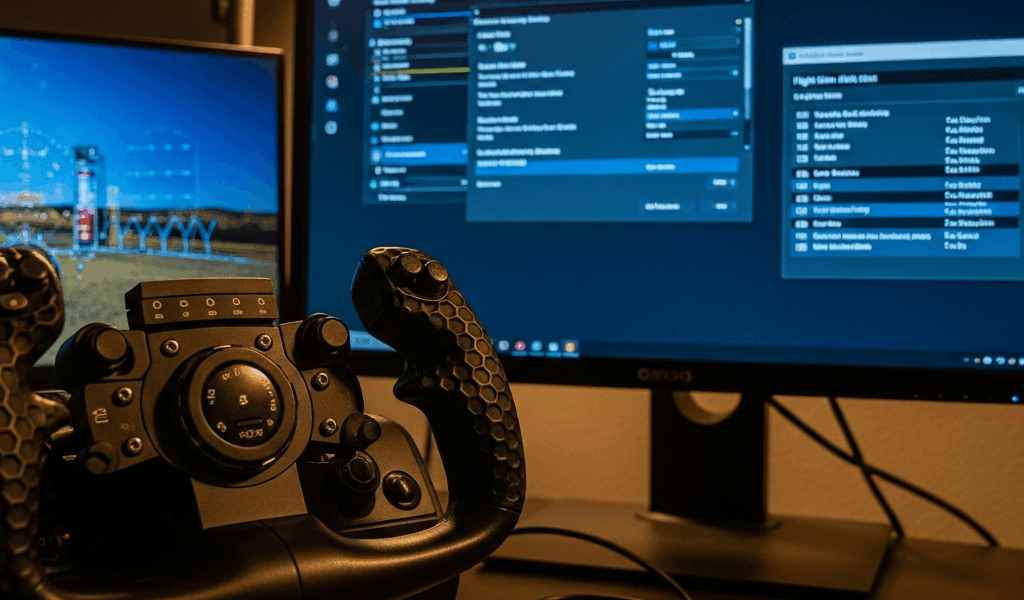
Why Your Alpha Yoke Calibration Keeps Failing
Honeycomb Alpha yoke calibration has gotten complicated with all the contradictory forum noise flying around. As someone who spent two genuinely maddening hours assuming my $300 yoke was completely dead, I learned everything there is to know about this subject. Today, I will share it all with you.
Here’s the thing people miss: this isn’t one fix. It’s three. Windows wasn’t talking to my yoke properly — that was it. Two hours of panic for a ten-minute solution.
Two root causes create this nightmare. Windows either doesn’t recognize the device or chokes halfway through the calibration wizard. Or — and this one gets people constantly — MSFS overrides your freshly completed calibration with its own sensitivity curve, sometimes pulling in ghost axis bindings from a previous session you’ve long forgotten about.
Firmware corruption exists too. It’s rarer, though. Most people never touch firmware. Most people also blow past the center-point hold during Windows calibration, which immediately breaks everything. We’ll cover that.
Probably should have opened with this section, honestly. But forum threads bury the actual solution under seventeen pages of contradictory advice. Here, you’ll know exactly which fix applies to your situation within the first five minutes. So, without further ado, let’s dive in.
Fix 1 — Recalibrate Through Windows USB Game Controllers
Start here. This handles roughly 70% of calibration failures — at least if you follow the center-hold step correctly, which most people don’t.
- Plug the Honeycomb Alpha into a USB 3.0 port if you have one available. USB 2.0 technically works, but 3.0 is noticeably more stable in practice.
- Press Windows Key + R to open the Run dialog.
- Type joy.cpl and hit Enter. This opens the USB Game Controllers window.
- You should see “Honeycomb Alpha” listed. Click it once to highlight it.
- Click Properties.
- Navigate to the Settings tab.
- Click Calibrate.
Now comes the part everyone rushes. The wizard walks you through center position, full pitch back, full pitch forward, full roll left, full roll right. Do not rush the center position step. Set the yoke naturally in the center. Hold it there. Count three full seconds. Let go. Hands off entirely.
Skip this — or twitch through it too fast — and the calibration software logs the center somewhere it isn’t. Your yoke drifts up or down in level flight. You trim endlessly. You go slightly insane. Don’t make my mistake.
Finish the rest of the wizard. Ninety seconds total, maybe less.
If Windows shows the device as “unrecognized” or the Properties button appears grayed out, run joy.cpl as Administrator. Right-click the Run dialog result, select “Run as administrator,” then try the whole sequence again.
Close MSFS entirely. Disconnect the yoke. Wait a full 10 seconds — not five, ten. Reconnect it. Test in the sim.
Fix 2 — Reset Axis Bindings Inside MSFS
But what is the real problem when Windows calibration looks fine but the yoke still drifts? In essence, it’s MSFS applying its own sensitivity curve or clinging to a corrupted axis profile from a previous session. But it’s much more than that — sometimes both issues stack on each other simultaneously.
- Launch Microsoft Flight Simulator.
- Go to Options.
- Select Controls.
- Filter for “Honeycomb Alpha” in the search bar, or scroll until your device appears.
- Find the aileron and elevator axis bindings — they’ll show as something like “Honeycomb Alpha Pitch” and “Honeycomb Alpha Roll.”
- Right-click each one and select Unbind. Delete both entries entirely.
- Disconnect the yoke via USB. Restart MSFS completely. Reconnect the yoke.
- MSFS will auto-detect the device and rebuild the axis bindings fresh. Let it finish without interrupting it.
Before you fly, pull up the Honeycomb Alpha control settings one more time. Find the sensitivity slider for pitch and roll. Set both to 0. Dead zone to 0 as well. These zeroed defaults let you isolate whether MSFS is manufacturing a drift problem in software or whether something is actually wrong with the hardware underneath.
Fly for five minutes in straight and level flight. Still drifting after the center-hold test? Hardware issue. Rock solid? Software was the entire problem.
One caveat worth knowing: MSFS occasionally retains ghost profiles after a USB reconnect — especially if you’ve run the yoke through other sims like X-Plane or Prepar3D. Duplicate Honeycomb entries, weird axis names you don’t recognize. Delete all of them. That’s what makes a clean reset endearing to us sim pilots — it actually works when done thoroughly.
Fix 3 — Update or Reinstall Honeycomb Firmware
Persistent center drift after both previous fixes? That usually points to firmware corruption. Honeycomb Aeronautical pushes firmware updates sporadically — not on any predictable schedule. Check their official support page for the current version and the dedicated firmware flashing tool.
Download the tool. Connect the yoke via USB. Follow the on-screen prompts exactly as written. The full flash takes under two minutes.
After flashing, Windows may want a fresh driver install. Disconnect the yoke. Open Device Manager. Look under “Human Interface Devices” for anything flagged as unknown or showing an error icon. Delete those entries. Reconnect the yoke. Windows handles driver installation automatically from there.
Then run through Fix 1 and Fix 2 again from scratch. Fresh firmware plus fresh Windows calibration plus fresh MSFS axis binding — that combination creates a genuinely clean slate. I’m apparently someone who needed all three layers reset simultaneously, and going through this exact sequence resolved every persistent drift issue I’ve hit since.
Still Not Fixed — When to Contact Honeycomb or Replace
Physical failure sounds different from software failure. Listen for grinding specifically on the roll axis during full left-to-right sweeps. Check the yoke shaft itself for visible play — any wobble side to side under light pressure. A healthy unit moves smoothly through the full range. A failing one creaks, clicks, or catches somewhere it shouldn’t.
Calibration that drifts within minutes of completing it — or a yoke that simply refuses to center despite multiple Windows recalibrations — points to a dying potentiometer inside the unit. Contact Honeycomb Aeronautical directly. Photos help. A written description of the specific symptom helps more. Their warranty covers manufacturing defects for two years from purchase date.
The return process runs about two weeks total. They’ll replace or repair the unit depending on what they find. Out of warranty — meaning you’ve owned it past the two-year mark — replacement cost lands around $250–$300 depending on current stock levels. That’s when some people start looking at the Logitech Yoke instead. Different failure mode entirely, but the build consistency is more predictable over time.
Work through everything in this article first, though. Ninety percent of people never need a replacement. They just needed Windows and MSFS to actually communicate with each other properly. That’s usually the whole story.


Stay in the loop
Get the latest ultimate flight simulators updates delivered to your inbox.