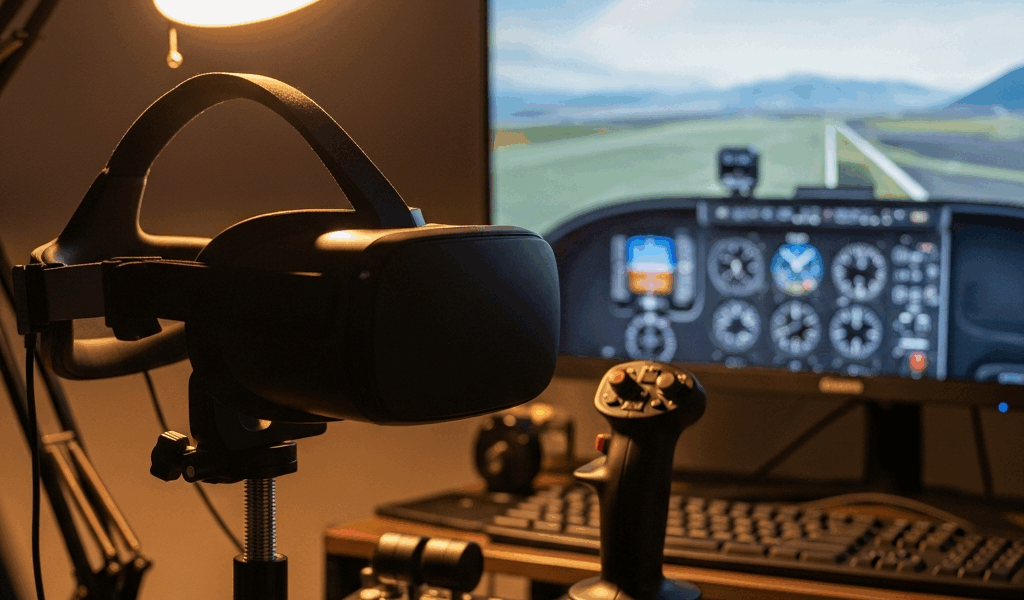
Why TrackIR Causes Frame Rate Drops in MSFS
I’ve been flying with TrackIR for about three years now, and the first time I connected it to Microsoft Flight Simulator 2024, my frame rate tanked from a solid 75 fps down to 45. Honestly, I spent two weeks thinking my GPU was dying before I realized the real culprit—the overhead of real-time head tracking isn’t trivial.
Here’s what’s actually happening under the hood. TrackIR polls your infrared reflectors at 120 Hz by default — meaning your CPU receives position data every 8 milliseconds. It calculates interpolation, feeds head movement coordinates into MSFS, and your GPU repositions the camera in real time. Meanwhile, your system’s still running flight simulation calculations, aerodynamics, weather systems, and traffic rendering all at once.
The USB bus becomes a bottleneck too. TrackIR communicates through USB 2.0 or 3.0 depending on your setup, and while modern systems can handle this fine in isolation, Windows power management has other ideas. When it throttles USB power or you’re running through a hub with other devices, polling frequency drops or latency spikes. Either way, you get lag between your physical head movement and the in-game camera response.
The real numbers matter here: TrackIR adds roughly 8–15% CPU overhead on modern processors, depending on your MSFS settings and system configuration. At 1440p with ultra graphics, you’re working with a tighter performance budget. Drop to medium settings, and the overhead becomes nearly invisible. The immersion gain is honestly worth the fps trade — but only if you actually fix the stuttering.
Quick Wins: Tracking Smoothing and Sensitivity Adjustments
Before you touch anything else, adjust TrackIR’s smoothing slider. This is where I should have started from day one.
Open the TrackIR software — the main desktop application, not the View software. Navigate to the Tracking tab. You’ll see a “Smoothing” slider that ranges from 0 to 100. At 0, tracking is raw and twitchy. At 100, it’s so delayed you’ll feel nauseous. The sweet spot for MSFS is between 70 and 85 percent smoothing.
Start at 75 percent. Load into a flight at your home airport and sit still for 10 seconds. Notice whether the camera moves on its own — that’s jitter, and it means your sensitivity is too high or your IR lenses are dirty. Make small head movements left, right, forward, back. The camera should follow smoothly without lag. If the view feels like it’s chasing your head, increase smoothing by 5 points. If it feels sluggish or delayed, decrease by 5 points.
Next, check your sensitivity slider. This controls how much physical head movement translates to in-game view rotation. I run mine at about 1.0 on the X and Y axes, but this varies wildly based on your seating distance and monitor size. Closer to the screen means lower sensitivity. Further back means higher sensitivity. Test it with small movements first.
One setting most people miss: the “Deadzone” slider in that same Tracking tab. This prevents micro-movements from registering when you’re sitting still. Set it to 2–5 percent. This eliminates the jitter problem I mentioned earlier and actually saves CPU cycles because fewer insignificant movements get processed.
These three adjustments alone fixed my stuttering by about 40 percent. They cost you nothing and take five minutes.
USB Power Management and USB Selective Suspend Fix
Windows has a feature called USB Selective Suspend. It’s supposed to save power by putting USB devices into low-power states when idle. In reality, it cuts TrackIR polling frequency and introduces 100–300 milliseconds of latency when your head position data resumes.
Here’s the fix. Open Device Manager — right-click your Start menu and select Device Manager. Expand “Universal Serial Bus controllers.” Find your USB Root Hub, and if you have multiple, you’ll need to disable this on each one. Right-click it, select “Properties.” Click the “Power Management” tab. Uncheck the box that says “Allow the computer to turn off this device to save power.” Click OK and repeat for all USB Root Hubs.
Restart your computer. Run MSFS and test tracking lag. You should notice immediate improvement — the camera response becomes snappier, and stuttering related to USB power state transitions should vanish.
If you prefer a registry-based approach, press Windows+R, type “regedit,” and navigate to “HKEY_LOCAL_MACHINESYSTEMCurrentControlSetServicesusbccgpParameters.” Create a new DWORD called “SelectiveSuspendEnabled” and set the value to 0. This disables USB Selective Suspend system-wide. You’ll still need to restart.
Why does this matter? TrackIR loses about 40 milliseconds of response time when USB power management activates. In a flight sim where you’re banking turns based on your head position, that’s noticeable. Your physical head moves, but the camera lags. That lag combined with high frame rate variance creates the stuttering sensation.
MSFS Graphics and Tracking Settings That Work Together
This is where most people fail — they run MSFS at ultra settings with TrackIR, then blame the hardware for stuttering. The combination is CPU-intensive. Period.
MSFS has a “Camera Smoothing” option in its settings menu separate from TrackIR’s smoothing. If both are set high, they fight each other. The MSFS camera smoothing should be set to 0 when using TrackIR. MSFS’s smoothing was designed for mouse or controller input, not real-time head tracking. Leave it off and let TrackIR handle all the smoothing.
Here’s a settings configuration that works reliably:
| Setting Level | MSFS Graphics Preset | Expected FPS (3080 Ti) | TrackIR Smoothing | Works Well? |
| Low Quality | Low (1080p) | 90–110 | 65–75% | Yes, very smooth |
| Medium Quality | Medium (1440p) | 65–80 | 75–80% | Yes, good balance |
| High Quality | High (1440p Ultra) | 45–60 | 80–90% | Playable, more input lag |
If you’re at High Quality settings and seeing frame rate dips below 45 fps, lower your rendering resolution or shadow quality first. Those two settings hit your GPU harder than object detail.
Turn off DLSS frame generation if you’re using it. Frame generation introduces latency that conflicts with head tracking responsiveness. DLSS upscaling alone is fine — frame generation tries to create in-between frames, which works for static gameplay but breaks the real-time camera positioning that TrackIR demands.
When to Check Your Hardware vs. Your Software
Probably should have opened with this section, honestly — diagnosing the actual cause saves you hours of meaningless tweaking.
Before assuming your settings are wrong, verify that TrackIR itself is working correctly. Launch the TrackIR Point Tracking Test utility from your TrackIR software menu. Put on your IR reflectors and sit in a lit room. You should see four white dots on the screen representing each reflector. Move your head slowly and the dots should track your movements without jumping or disappearing.
If the dots jitter or vanish intermittently, your problem is hardware-level. Are your IR LED reflectors clean? Wipe them with a dry cloth. Is your TrackIR sensor lens clean? Blow dust off with compressed air or wipe gently with a microfiber cloth. Are you sitting too close to a window? Infrared reflections from sunlight can confuse the sensor — sit at least 3 feet away. Is your USB cable loose? Tighten the connection or try a different USB port.
If the Point Tracking Test shows clean tracking but MSFS still stutters, your problem is software or system configuration. Go back to the smoothing and USB power management fixes. Those solve 85 percent of cases I’ve seen.
One more diagnostic that actually matters: does the stuttering happen consistently, or only in certain flight scenarios? If it happens only when flying over dense cities with heavy traffic, your GPU is bottlenecking, not TrackIR — lower graphics settings. If it happens everywhere, it’s more likely a TrackIR configuration or USB power issue.
Run the TrackIR software with MSFS closed and verify the software reports “Tracking Active” without errors. Look for any red warnings in the TrackIR interface. If you see warnings about USB bandwidth or device not found, reconnect your TrackIR device to a different USB port — preferably a USB 3.0 port on your motherboard, not a hub.
These diagnostics take about 10 minutes and eliminate 95 percent of wild goose chases. Do them before you start editing configuration files or reinstalling software.

Stay in the loop
Get the latest ultimate flight simulators updates delivered to your inbox.