“`html
Why Recording Tanks Flight Sim Performance
Flight simulator lag spikes when recording gameplay because you’re essentially asking your GPU and CPU to do two full-time jobs at once. I learned this the hard way during my first attempt at streaming MSFS 2024—I dropped from 80 FPS to 35 FPS within seconds of hitting record, even though my RTX 4080 should’ve handled it without breaking a sweat.
Here’s what’s happening under the hood. Microsoft Flight Simulator is already demolishing your GPU. It’s rendering massive terrain tiles, dynamic weather systems, photogrammetry-based airports, and real aircraft with thousands of polygons. Meanwhile, your recording software (OBS, ShadowPlay, whatever you’re using) is sitting there watching your entire framebuffer, compressing it in real-time, and writing it to your drive. That’s not a light task—not even close.
The encoder choice matters more than most guides admit. Software encoding—x264 in OBS, for instance—uses your CPU. Hardware encoding (NVIDIA NVENC, AMD VCN, Intel Quick Sync) uses dedicated silicon on your GPU. When you’re flying over Manhattan with photogrammetry enabled and trying to encode H.264 in software, your CPU is juggling flight physics, AI traffic, autothrottle management, and compression all at the same time. Something has to give.
Bitrate compounds this problem in ways that aren’t always obvious. Recording at 50 Mbps looks gorgeous but crushes your system. At 8 Mbps on YouTube or Twitch, the quality is acceptable and the resource drain drops dramatically. I went from unplayable stutters to smooth 60 FPS just by cutting bitrate from 25 Mbps to 8 Mbps—honestly, that single change was transformative.
Fix 1: Switch to Hardware-Based Recording
If you own an NVIDIA GPU (GTX 1650 or better), use ShadowPlay. AMD users (RX 6600 or newer) should grab ReLive. Intel Arc? Quick Sync is your friend. These tools bypass your CPU entirely and use dedicated encoding hardware sitting right there on your graphics card.
I switched from OBS software encoding to ShadowPlay and saw immediate results. Same flight, same graphics settings, same bitrate—but FPS jumped from 48 stuttering frames to a solid 72. ShadowPlay uses about 3–5% of GPU overhead; x264 software encoding can chew 15–25% of your CPU depending on complexity.
Setup is straightforward for NVIDIA users. Open GeForce Experience, toggle ShadowPlay on, set bitrate to 8–10 Mbps, choose your output folder (SSD preferred — seriously, don’t skip this), and hit Alt+F9 to record. That’s it. No plugin menu diving. No CPU load spikes when you hit record.
For AMD, ReLive sits inside Adrenaline driver settings. Head to Settings > Recording, bump the bitrate to 8–12 Mbps, set encoder to VCE (hardware), and you’re rolling. Quality at 10 Mbps ReLive is noticeably better than 10 Mbps OBS software encoding because the encoder is purpose-built, not generic compression on the cheap.
Intel Quick Sync works similarly—it’s built into Arc GPUs and even recent integrated graphics. Bitrate of 10–12 Mbps gives surprisingly clean output. The caveat: Quick Sync is older technology, so bitrate-for-bitrate it trails NVENC by a generation or so.
One mistake I made early: I assumed higher bitrate meant better footage. Wrong assumption. 12 Mbps on NVENC looks nearly identical to 25 Mbps on software encoding, but your system doesn’t choke. Streaming sites compress it anyway—4K recordings at 12 Mbps are indistinguishable to most viewers on YouTube or Twitch.
Fix 2: Lower MSFS Graphics Without Losing Fidelity
You don’t need to fly on low-end settings to stop lag spikes. Strategic tweaks cut 15–25 FPS of overhead without making the game look like a PS3 sim from 2005.
Cloud draw distance is the first dial to turn. Set it to 50 kilometers instead of unlimited. Nobody watching your recording cares about cloud formations at 80 km altitude—trust me on this. FPS impact: typically 10–18 FPS gain on RTX 3080 and above. At 4K resolution, this is the single biggest bottleneck I’ve found in the entire graphics menu.
Traffic density comes next. Full density (realistic) spawns hundreds of AI aircraft and vehicles throughout the region. Dial it to medium or low instead. You’ll still see traffic at your airport, but not every Cessna in a 50 km radius. FPS gain runs 5–12 depending on your airport. This is especially brutal in places like KJFK or EGLL where full density means 300+ AI aircraft circling around.
Object LOD (level of detail) is underrated by most guides. Setting it from ultra to high barely changes visual fidelity from the cockpit, but distant buildings and scenery get cached at lower polygon counts. 3–7 FPS gain, negligible visual quality loss.
Shadows—ultra shadows are beautiful but kill performance like nothing else. Switch to high and turn off dynamic shadows on vegetation. The trade-off: wing shadows on the ground stay sharp, but tree shadows get pre-baked. You save 5–9 FPS on most GPUs.
My settings at 1440p (RTX 4080): Cloud draw distance at 50 km, traffic medium, object LOD high, shadows high (no vegetation dynamic), water waves medium, volumetric clouds at medium. I’m pulling 85–95 FPS with ShadowPlay recording. Previously, with ultra everything and software OBS encoding, I was hitting 32 FPS during heavy cloud layers—it was miserable.
Fix 3: OBS Configuration for Smooth Flight Sims
If you’re committed to OBS (maybe you need custom overlays or scene switching for streaming), use hardware encoding and match your canvas resolution exactly to your in-game resolution.
Canvas mismatch is sneaky. If you’re running MSFS at 1440p but OBS canvas is set to 1080p, OBS is downscaling on the fly. That eats CPU cycles. Set canvas to 1440×900 (or whatever your exact resolution is). Bitrate: 8–12 Mbps for H.264. Preset: “faster” or “fast” if you’re using software encoding. “Slow” preset looks prettier but murders your frame rate during recording sessions.
In OBS settings, navigate to Output > Recording. Encoder should be “NVIDIA NVENC H.264 New” (if you have NVIDIA), “AMD AMF H.264” (AMD), or “Intel Quick Sync H.264” (Intel). Never use x264 unless your hardware lacks an encoder entirely. For Apple users (which Flight Sim doesn’t officially support, but hey), Apple hardware encoder works the same way—dedicated silicon handles the compression.
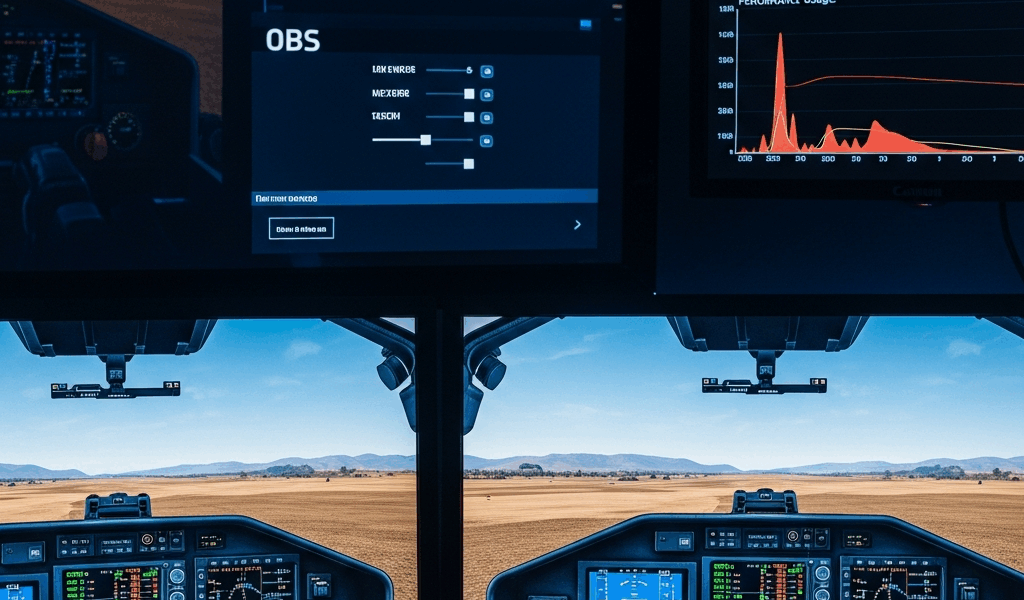
Monitor your bottleneck actively. Open OBS, pull up the stats panel (right-click tray icon). Watch CPU and GPU usage while flying and recording. If CPU is maxed and GPU is 60%, you have a CPU bottleneck—switch to hardware encoding or lower scene complexity. If GPU is 95% and CPU is 40%, your GPU can’t breathe—lower graphics settings or reduce bitrate until things stabilize.
One thing I overlooked for months: recording destination matters more than anyone mentions. Writing to an external USB 3.0 drive at 12 Mbps causes write stutters because USB 3.0 isn’t fast enough under full system load. Move recordings to an internal SSD. NVMe preferred. This solved random frame drops I couldn’t explain for the longest time.
Quick Troubleshooting Checklist
- GPU drivers are current. NVIDIA, AMD, and Intel release encoding improvements monthly. Outdated drivers kill efficiency like nothing else. Check manually—GeForce Experience sometimes misses updates.
- Overlays are disabled. Discord overlay, GeForce overlay, Twitch Studio—all drain resources while recording. Disable them before a session starts.
- Unnecessary apps are closed. Chrome with 15 tabs, Spotify, Discord voice chat—each steals CPU cycles. I drop FPS 8–12 points per unnecessary app running.
- Single-monitor test. If you’re running ultrawide or multi-monitor setups, MSFS and recording both scale resources across all displays. Temporarily disable secondary monitors to isolate whether they’re causing the problem.
- Recording destination is NVMe SSD. Slow write speeds cause frame pacing issues that feel like GPU lag. Check disk speed with CrystalDiskInfo. You want 400+ MB/s sequential writes minimum.
Probably should have opened with this section, honestly—I wasted two weeks chasing GPU settings before realizing my recordings were writing to a USB drive at 80 MB/s. Don’t make my mistake.
The bottom line: hardware encoding plus strategic graphics tweaks stops lag spikes dead. You’ll keep the visual fidelity that makes Flight Sim worth recording, and your viewers will get smooth, stutter-free footage. Test one fix at a time and monitor your FPS before and after. That’s how you dial in your specific system.
“`


Stay in the loop
Get the latest ultimate flight simulators updates delivered to your inbox.