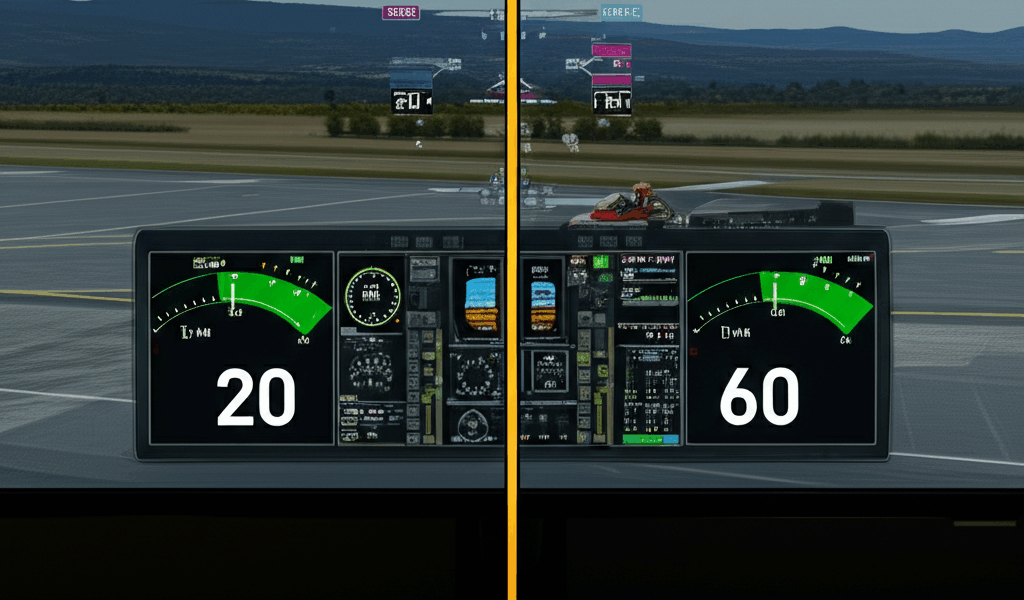
The 20 FPS Struggle Is Real
You loaded into your favorite airport, taxied to the runway, and suddenly your smooth flight simulator turned into a slideshow. Twenty frames per second makes flying frustrating and landings nearly impossible. Before you blame your hardware, try these seven settings changes that consistently deliver dramatic performance improvements.
1. Drop Render Scaling to 80-90%
This single setting change often doubles frame rates. Render scaling determines the internal resolution before the image is displayed. At 100%, your GPU renders every pixel of your native resolution. At 80%, it renders significantly fewer pixels and upscales the result.
How to apply: Options > Graphics > Render Scaling
Expected gain: 30-50% improvement
Quality impact: Minimal at 1440p/4K, noticeable at 1080p
This works because most flight simulator visuals—terrain, clouds, scenery—don’t require pixel-perfect rendering. The upscaling algorithm handles the difference smoothly.
2. Reduce Terrain and Object LOD to 100
Level of Detail settings control how complex the world geometry becomes. Default values often exceed 200, demanding far more processing than necessary. The visual difference between 100 and 200 is subtle; the performance difference is substantial.
How to apply: Options > Graphics > Terrain Level of Detail / Objects Level of Detail
Expected gain: 15-25% improvement
Quality impact: Slightly less ground detail at cruise altitude, barely visible during normal flying
3. Lower Volumetric Clouds to Medium
Those gorgeous volumetric clouds are rendering nightmares. Each cloud formation requires complex ray-marching calculations that hammer your GPU. Medium cloud quality maintains the three-dimensional cloud appearance while significantly reducing computational overhead.
How to apply: Options > Graphics > Clouds
Expected gain: 20-40% improvement depending on weather
Quality impact: Clouds appear slightly less detailed, especially at distance. Still far superior to older simulators.
4. Set Glass Cockpit Refresh Rate to Medium or Low
Modern aircraft cockpits feature complex glass displays that update constantly. Each refresh cycle consumes CPU resources. Unless you’re watching your instruments change frame-by-frame, you won’t notice reduced update rates during normal flight.
How to apply: Options > Graphics > Glass Cockpit Refresh Rate
Expected gain: 10-20% improvement in complex aircraft
Quality impact: Instruments update slightly less frequently. Completely unnoticeable for most operations.
5. Disable or Reduce Traffic
AI aircraft, ground vehicles, airport workers, and boats all require CPU cycles to simulate. If you’re flying solo without caring about ambient activity, reducing traffic settings frees substantial processing power.
How to apply: Options > General > Traffic Settings
Expected gain: 10-30% improvement at busy airports
Quality impact: Fewer aircraft and vehicles visible. Empty ramps at major airports.
Even reducing traffic to 50% rather than disabling entirely provides meaningful improvement while maintaining some airport life.
6. Turn Off Photogrammetry in Dense Areas
Photogrammetry cities like New York, London, and Tokyo deliver incredible visual accuracy but destroy frame rates. The complex 3D mesh data streams constantly and requires significant GPU processing. When flying over or near photogrammetry areas, performance tanks.
How to apply: Options > Data > Photogrammetry (toggle off)
Expected gain: 20-40% improvement over photogrammetry areas
Quality impact: Cities revert to autogenerated buildings. Landmark accuracy lost.
Consider toggling photogrammetry based on your route rather than disabling permanently. Rural flights don’t benefit from it anyway.
7. Enable DLSS or FSR
If your graphics card supports NVIDIA DLSS or AMD FSR, enable it. These technologies use AI or algorithmic upscaling to render at lower resolution while maintaining perceived quality. The results are remarkable.
For NVIDIA RTX cards: Enable DLSS in Quality or Balanced mode
For AMD cards: Enable FSR in Quality mode
For older NVIDIA cards: Enable FSR (works on GTX series too)
Expected gain: 30-60% improvement
Quality impact: Slight softening of fine details, barely noticeable in motion
Bonus: Quick Fixes That Help
Update your drivers: GPU drivers optimized for MSFS releases make meaningful differences. Check for updates monthly.
Close background applications: Browsers, Discord with hardware acceleration, and streaming software compete for resources. Close what you don’t need.
Use fullscreen mode: Fullscreen (not borderless windowed) gives the simulator direct GPU access, improving performance and reducing input latency.
Enable rolling cache: An 8-16GB rolling cache on an SSD reduces repeated data downloads, smoothing performance in frequently-visited areas.
After Making Changes
Apply changes, restart the simulator completely (not just the flight), and test at the same airport and time of day. Weather, traffic, and location all affect performance—controlling these variables helps you measure actual improvement.
If you’re still struggling after these changes, your hardware may genuinely need upgrading. But most users running at 20 FPS can reach 35-45 FPS through settings optimization alone—enough to transform the experience from frustrating to flyable.


Stay in the loop
Get the latest ultimate flight simulators updates delivered to your inbox.