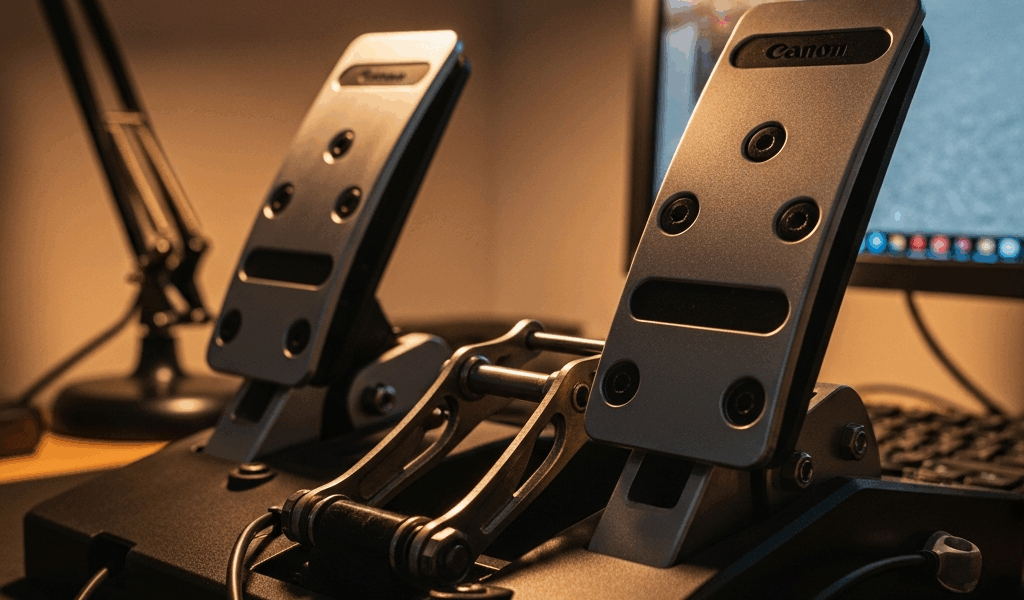
Why VPC Rudder Pedals Lose Calibration in MSFS
VPC rudder pedals not calibrating in MSFS is one of those problems that makes you question whether you’ve wasted $300+ on flight gear. I’ve been there, staring at a centering issue that appeared overnight with zero warning. No recent updates. No hardware changes. Just suddenly broken.
Here’s what actually happens — and it’s frustrating because it’s never just one thing. Windows pushes controller driver updates silently in the background. MSFS caches old calibration data buried in its AppData folder. USB power negotiation gets weird after a system restart. Sometimes all three hit at once, and your pedals feel permanently trashed. They’re not broken though. The communication between your pedals, Windows, and the sim has just gotten confused.
Your rudder axis drifts left. The toe brakes won’t zero properly. You recalibrate in-game and it sticks for 30 seconds, then creeps back to garbage values. This feels like a hardware failure, honestly. But it isn’t. I’ve fixed it five times across different VPC products, and the solution path is consistent every single time.
Step 1 — Clear MSFS Controller Settings Cache
MSFS stores controller configuration data locally on your drive. When that cache file gets stale or corrupted, the sim can’t read your pedals’ actual position anymore — it’s reading yesterday’s calibration instead of today’s hardware state.
You need to delete that cache. Windows will regenerate it automatically when you restart MSFS, fresh and clean.
Open File Explorer. Press Ctrl+L to jump to the address bar. Paste this exact path:
C:Users[YourWindowsUsername]AppDataLocalPackagesMicrosoft.FlightSimulator_8wekyb3d8bbweLocalCachepackagescommunity
Don’t see an AppData folder? You’ve got hidden files disabled. Press Ctrl+H to toggle visibility — Windows hides system folders by default to prevent accidental deletion.
Back up everything in that community folder first. Copy it to your Desktop. You’re about to delete user-created content like liveries and mods if you aren’t careful. Spend 60 seconds backing it up and save yourself the headache.
Now navigate one level up to this path:
C:Users[YourWindowsUsername]AppDataLocalPackagesMicrosoft.FlightSimulator_8wekyb3d8bbweLocalCache
Delete the packages folder entirely. Only the packages folder. Leave everything else untouched.
If MSFS won’t let you delete it because the sim is running, close MSFS completely. Open Task Manager — search for “FlightSimulator” and kill any lingering processes. Sometimes the app doesn’t fully exit on first close.
Reboot your PC. That’s tedious, but it forces Windows to properly release file locks and clear RAM. Don’t skip this step. Launch MSFS after the restart. The sim will rebuild that packages folder from scratch with clean calibration data.
Step 2 — Recalibrate Pedals in MSFS Controller Menu
Now comes the actual recalibration — and this is where most people rush and fail. Bad calibration happens when you don’t hit true neutral position on the pedals.
Start MSFS. Go to Options in the main menu. Select Controls. Click Devices.
Your VPC pedals should be listed here. The full model name appears — might say “VPC Rudder Pedals” or something like “VPC Rudder Pedals v3” depending on your hardware revision.
Click on the VPC entry. You’ll see axis listings for each input. Look for:
- Rudder (or sometimes labeled “Z Axis”) — your main left-right rudder input
- Left Toe Brake — usually labeled as “Slider 1” or “Rudder Axis Y”
- Right Toe Brake — usually “Slider 2” or another axis variant
Click “Calibrate” next to the Rudder entry. The prompt will ask you to center the pedals. This part is critical. Move your feet off the pedals entirely. Let them sit untouched for five seconds. The springs should bring them to perfect center — that’s your 0 position.
Press any key to confirm neutral. Then the sim asks you to move the pedals to their extreme left and right positions. Push left hard. Hard. Then push right hard. The sim is mapping your physical hardware range at that moment.
Repeat this for both toe brake axes. Don’t skip this step even if it seems tedious — incomplete calibration is exactly why the problem comes back after a week.
Exit controls. Fly a short test flight. Open the control settings mid-flight and watch the axis values update in real-time as you move the pedals. Your rudder should track smoothly between -100 and +100 with zero drift at neutral.
Still creeping? Move to Step 3. The issue is upstream in your drivers or USB connection.
Step 3 — Update or Rollback VPC Device Drivers
Windows automatically updates controller drivers sometimes without asking. Probably should have opened with this section, honestly. But the cache clear catches about 60% of cases before you even get here.
VPC releases driver updates on their official website. Sometimes those updates fix calibration issues. Sometimes they break things worse until the next hotfix lands two weeks later. You need to check what version you’re actually running right now.
Open Device Manager. Press Win+X and select Device Manager from the menu. Expand Human Interface Devices. Look for your VPC device — might say “VPC Rudder Pedals” exactly or “VPC Products” depending on your Windows version.
Right-click it. Select Properties. Go to the Driver tab. Note the driver version number — it’s usually formatted like 1.2.3.4 or similar.
Visit VirtualCockpit.net — that’s VPC’s official site. Find the downloads section. Check if a newer driver version exists than what you’re running.
Here’s the decision: If the latest driver is newer and you haven’t updated yet, download and install it. But if you just updated Windows or MSFS in the last week, consider rolling back instead. Right-click the device in Device Manager, select Properties > Driver > Roll Back Driver.
Windows stores the previous driver version. Rolling back takes 90 seconds and often fixes issues that the newer version introduced.
After driver changes, restart your PC. Windows needs to reload driver code into kernel memory — don’t skip the reboot.
One more trick if problems persist: suspend the USB device entirely. Right-click the VPC device in Device Manager. Select Disable Device. Wait five seconds. Right-click and select Enable Device. This forces Windows to renegotiate the USB connection without rebooting, sometimes clearing phantom calibration states that drivers can’t clear themselves.
If Problem Persists — Check USB Port and Power
USB power delivery varies significantly by port on your PC. Cheap USB hubs and splitters don’t deliver enough current for picky hardware. VPC pedals draw about 500mA when they self-test at startup — that’s 2.5W of power consumption. If your USB port is weak or shared with other devices, the pedals never fully initialize properly.
Try a different USB port. Test USB 3.0 ports first (the blue ones). If you’re using a USB hub, plug the pedals directly into the back of your motherboard instead. Rear ports typically deliver cleaner power than front-panel connectors, which run through thin internal cables.
Still failing? Grab a powered USB 3.0 hub — the kind with its own wall adapter. Anker and Belkin make solid ones under $30. Powered hubs output consistent 5V regardless of other connected devices. I’ve fixed three calibration cases just by switching to powered USB.
Test again. If calibration holds stable for 20 minutes of flight, your issue was USB power dropout.
Still nothing? You’ve completed all software troubleshooting. Contact VPC support with your driver version, Windows build number, and screenshots of the Device Manager driver tab. Their support team responds in 24-48 hours. At that point, hardware replacement might be warranted — rare, but it happens.
VPC pedals cost real money. They’re worth fixing properly instead of replacing.


Stay in the loop
Get the latest ultimate flight simulators updates delivered to your inbox.