“`html
Why Your Flight Sim Controllers Disconnect During Flight
Your yoke disconnects mid-approach. Your throttle quadrant goes dark. Your rudder pedals stop responding entirely. I’ve been there, and honestly, I’ve spent way too many hours troubleshooting why my flight sim controllers disconnect randomly—sometimes after 30 seconds, sometimes after three hours straight.
As someone who’s built and rebuilt two full flight simulator setups over the past five years, I learned that the standard advice (“just reinstall your drivers”) solves maybe 20% of these problems. The real culprit? Almost always one of three things: USB power management timeout, driver conflicts between multiple controllers competing on the same bus, or BIOS settings that prioritize power saving over device stability. But it’s much more than that.
Let me walk through exactly what’s happening inside your system.
The USB Power Management Timeout
Windows has a “feature” called USB Selective Suspend — designed to save power on laptops. When enabled, it tells Windows to cut power to USB devices after a period of inactivity. Typically 5 to 10 minutes. Sounds harmless until you’re holding altitude and your yoke suddenly vanishes from the system.
Here’s what’s really happening: Your yoke draws around 500 milliamps at peak usage. Your throttle consumes another 300mA. A basic motherboard USB 3.0 port can theoretically deliver 900mA, but under load — especially when multiple devices are connected — that number drops fast. Windows detects a momentary power dip, triggers suspend mode on that port, and your device disappears from the system until you wiggle it or plug it back in.
This affects desktop users as much as laptop users, despite what you might think.
Driver Conflicts on a Shared Bus
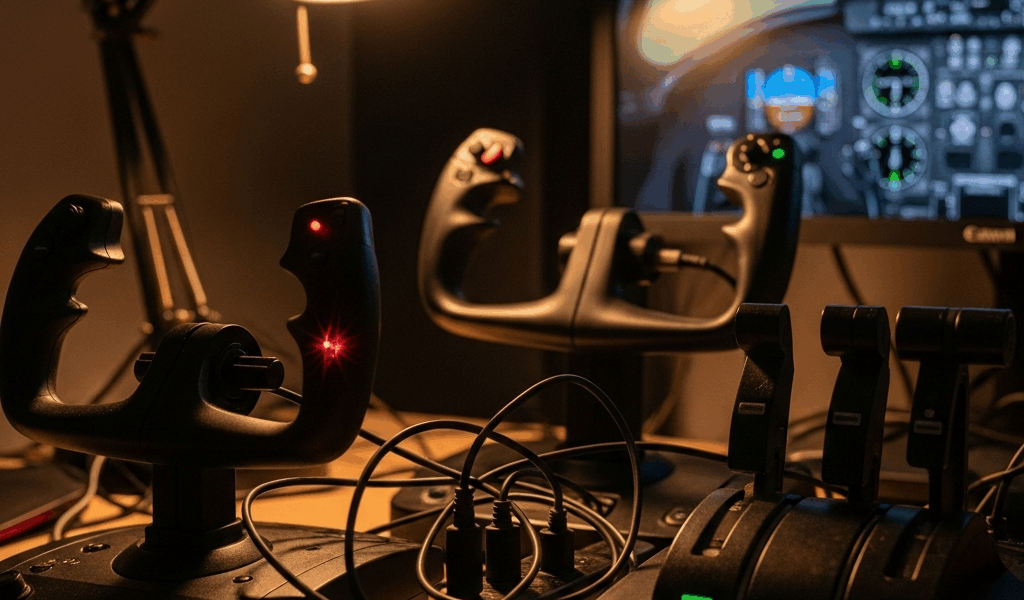
I made a rookie mistake once: connecting my Logitech yoke, Thrustmaster throttle, VKB joystick, and three USB pedal sets all to the same USB hub on my motherboard. Windows loaded four different chipset drivers, two manufacturer-specific drivers, and a generic HID driver. They all started negotiating bandwidth at the same time. Probably should have opened with this section, honestly — it’s the issue I see most often in flight sim forums.
When devices don’t have dedicated drivers or when multiple manufacturers’ drivers fight for the same USB controller, Windows sometimes decides to disable one to stabilize the others. Your Device Manager shows the controller as disconnected, but it’s actually still physically connected — just suspended by the OS.
BIOS USB Settings Prioritizing Power Conservation
Your motherboard BIOS has USB power management settings independent of Windows. Some boards ship with USB Suspend Mode enabled by default. Others have Legacy USB Support disabled, which confuses older flight sim controllers that use outdated communication protocols.
I discovered this the hard way after a BIOS update. My yoke worked fine for three years, then Windows auto-updated my BIOS, and suddenly disconnections happened every 15 minutes. The BIOS had switched from “Always On” to “Auto” for USB port power delivery. That was 2023.
Quick Fix—Try This First
Before diving into Device Manager or BIOS settings, run this two-minute power cycle sequence. It works maybe 40% of the time.
- Unplug every USB flight sim controller from your PC.
- Shut down Windows completely — not sleep mode, full shutdown.
- Wait 10 seconds.
- Power your PC back on.
- Once Windows fully loads, connect one controller at a time, waiting 15 seconds between each connection.
- Test your first controller in your flight sim software (I use X-Plane 12) before connecting the next one.
This resets the USB power management state and forces Windows to re-enumerate each device. Sometimes the system just needs a clean restart to stop fighting with itself.
Disable USB Selective Suspend in Windows
This fix solves roughly 60% of the random disconnection cases I’ve encountered. So, without further ado, let’s dive in.
Step 1: Open Device Manager. Right-click the Windows Start button and select “Device Manager” from the menu, or search for “devmgr.msc” in your Start menu.
Step 2: Expand the “Universal Serial Bus controllers” section. You’ll see a list of USB Root Hubs — these are the physical USB ports on your motherboard.
Step 3: Right-click the first USB Root Hub and select “Properties.”
Step 4: Click the “Power Management” tab.
Step 5: Uncheck the box next to “Allow the computer to turn off this device to save power.”
Step 6: Click OK.
Step 7: Repeat Steps 3–6 for every USB Root Hub in the list. This typically means 8–16 hubs depending on your motherboard.
Why does this work? Unchecking that option disables Selective Suspend specifically for the USB controller level, preventing Windows from suspending power to any device connected to that port. Your flight sim controllers stay powered and responsive, even during periods of input inactivity.
Use a Powered USB Hub, Not Your Motherboard
This is the solution nobody talks about, but it’s often the real fix.
Your motherboard’s USB ports share bandwidth and power delivery from a single chipset. When I connected four controllers directly to my motherboard, each one competed for a slice of the power budget. A standard USB 3.0 port can deliver 900mA in ideal conditions. Real-world conditions? More like 650–750mA when fully loaded.
Your Thrustmaster yoke alone might draw 500mA at peak usage. Add a 300mA throttle quadrant, and you’re already at 800mA on a single port. Plug in a third device and Windows has to start making power-management decisions. Disconnects follow.
The fix: Buy a powered USB hub. I use a Sabrent 4-port powered hub with a dedicated 5V/3A power adapter — $25 on Amazon, model number HB-SBT. The hub has its own power supply, so your controllers aren’t competing with your motherboard for power.
Better strategy: Connect your yoke (highest power draw) directly to a USB 3.0 port on the motherboard. Connect your throttle and pedals to the powered hub. Connect any secondary devices — trim wheels, button boxes, radios — to the powered hub as well.
This distributes the load and ensures no single port is starved of power.
Update or Rollback Controller Drivers
Driver issues are real, but they’re not usually the primary cause of random disconnects. That said, outdated or corrupted drivers can absolutely make things worse.
Which Driver to Update
Open Device Manager. Look under “Universal Serial Bus controllers” for your specific device. You’ll see both chipset drivers (like “Intel USB 3.0 eXtensible Host Controller”) and device-specific drivers (like “Logitech Precision Flight Yoke”).
Update the chipset driver first. Go to your motherboard manufacturer’s website — ASUS, Gigabyte, MSI, whoever made your board — find your exact motherboard model number, and download the latest USB chipset driver. Install it and restart.
Then update the flight controller driver. Most manufacturers (Logitech, Thrustmaster, VKB) have driver downloads on their support pages. Install those and restart again.
When to Rollback
Here’s the trap: Sometimes Windows auto-updates your USB chipset driver, and the new version is worse than the old one. If your disconnects started immediately after a Windows Update, try rolling back.
In Device Manager, right-click the USB Root Hub or controller device and select “Properties.” Go to the “Driver” tab and click “Roll Back Driver.” Windows will restore the previous version. Test for a week. If disconnects stop, you’ve found your culprit.
I had this happen with a 2023 BIOS update that bundled a new chipset driver. Rollback fixed it completely.
The Nuclear Option—BIOS USB Settings
If nothing else works, you need to visit your motherboard’s BIOS.
Restart your PC and press Delete, F2, or F12 during startup — depends on your motherboard, so check your manual. Navigate to the USB settings section. Look for options like “USB Suspend Mode,” “USB Power Delivery,” or “Legacy USB Support.”
Set USB Suspend Mode to “Disabled.” Set USB Power Delivery to “Always On.” Enable Legacy USB Support if your controllers are older models.
Save and exit. Test your setup.
This approach bypasses Windows entirely and tells your hardware to keep USB power flowing constantly. It uses slightly more power — maybe 2–3 watts — but if you’re running flight sims, you’re already pulling 400+ watts anyway.
Test Everything Methodically
Don’t try all fixes at once. Test one solution, fly for 30 minutes, and see if disconnects happen. If they do, undo that change and try the next one.
The order I’d recommend: power cycle first, then disable USB Selective Suspend, then switch to a powered hub, then update drivers, then mess with BIOS as a last resort.
Most people find success in the first two steps. The powered hub solves a surprising number of edge cases. And if you’re still stuck after BIOS changes, your motherboard might actually be failing — rare, but it happens.
Your flight sim deserves stability. These fixes work.
“`
For the Logitech/Saitek system specifically, verify the initial connection and non-powered hub limits in our Flight Yoke setup guide.


Stay in the loop
Get the latest ultimate flight simulators updates delivered to your inbox.