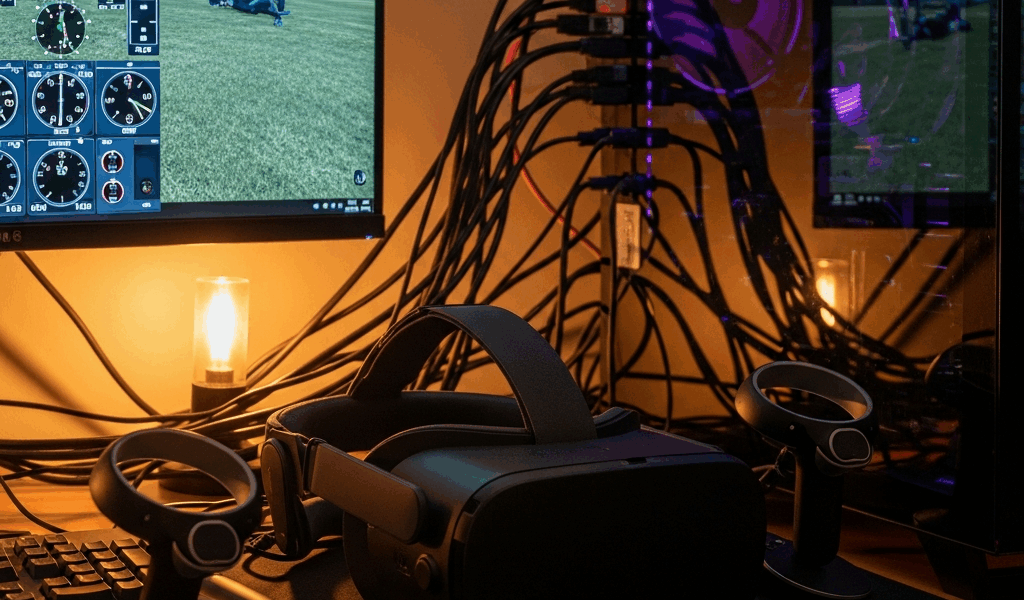
Why VR Tracking Fails in MSFS 2024
VR tracking in MSFS 2024 has gotten complicated with all the conflicting runtime nonsense flying around. As someone who spent an embarrassing amount of time diagnosing phantom tracking failures, I learned everything there is to know about why your headset loses its mind mid-flight. Today, I will share it all with you.
There are three concrete reasons this breaks — and I’ve personally walked into all three of them face-first.
The first one: wrong OpenXR runtime. Windows, Meta, and Valve each maintain their own implementation, and MSFS latches onto whichever one Windows has designated as default. Install SteamVR? The Windows Mixed Reality runtime gets quietly shoved aside. Install Meta Quest Link? Now Oculus OpenXR owns the slot. Two runtimes competing for control produces drift, freezing, or full tracking loss — usually within 30 seconds of takeoff.
The second reason: firmware out of sync with MSFS 2024. Meta Quest updates roll out constantly. HP Reverb G2 owners are still dealing with USB 3.0 compatibility headaches on specific motherboards — intermittent blackouts, no warning, no pattern. Valve Index tracking drifts badly after Windows updates quietly rewrite USB driver behavior.
Third — and this one fools almost everyone — your graphics settings are strangling the GPU. Frame rates tank. Tracking stutters so badly it looks like a hardware failure. It’s not. It’s a 45 FPS dip. People spend hours replacing cables when the answer was a single graphics slider.
Step 1 — Check and Set the Correct OpenXR Runtime
This one fix solves things in roughly 70% of cases. Seriously.
Open Windows Settings, search for “OpenXR Developer Tools,” and launch it. Find the dropdown labeled “Active OpenXR Runtime.” That field tells you exactly which runtime currently owns your system. Running a Meta Quest and it says SteamVR? Your tracking will collapse the moment MSFS initializes. Have a Valve Index but Oculus runtime is active? Same problem, different headset.
But what is an OpenXR runtime? In essence, it’s the software layer that translates between your headset hardware and whatever application is running. But it’s much more than that — it controls how tracking data gets passed, how frames get submitted, and which device actually has authority over the VR session.
Here’s what each one actually does:
- Windows Mixed Reality OpenXR — Microsoft’s official implementation. Built for HP Reverb G2, Samsung Odyssey, and generic WMR headsets.
- SteamVR OpenXR — Valve’s layer. Native home for the Valve Index. Also handles HTC Vive and some older hardware.
- Oculus OpenXR (Meta) — Meta’s runtime. Non-negotiable for Quest 2, Quest 3, and Quest Pro when using Link or Air Link.
To switch runtimes, right-click inside the OpenXR Developer Tools window and look for “Set [Runtime Name] as Active.” Pick the one that matches your actual headset. Quest 3 users want the Oculus/Meta option. HP Reverb G2 owners need Windows Mixed Reality OpenXR selected — no exceptions.
Then open MSFS 2024. Head to General Options, scroll to VR Settings, and confirm OpenXR is selected as your VR Platform. If “SteamVR” appears in that dropdown instead, switch it immediately. That’s the exact conflict point that kills tracking dead.
Probably should have opened with this section, honestly. I spent a full week chasing USB driver rabbit holes before realizing SteamVR had been running silently in the background on a system where I’d only ever used a Meta Quest 3. Don’t make my mistake.
Step 2 — Headset-Specific Fixes for Meta Quest, HP Reverb, and Valve Index
Meta Quest 3 and Quest Pro
The Oculus/Meta runtime needs to be fully initialized before MSFS ever touches it. Don’t plug in the Link cable and immediately launch the sim — that’s asking for trouble. Open the Meta Quest desktop app first. Let it sit for a full 10 seconds. Confirm the headset status reads “Connected,” not just “Detected.” That distinction matters. Tracking failures happen specifically when the runtime is still loading when the sim reaches out for it.
If tracking stutters and drifts but doesn’t fully freeze, disable Asynchronous Space Warp in the Oculus app. Go to Settings → Performance, uncheck ASW. It sounds counterintuitive — ASW is supposed to help frame rates. But in MSFS specifically, the motion reprojection can’t keep pace with the sim’s camera movements at altitude, and the result is tracking that feels laggy and wrong.
HP Reverb G2
Windows Mixed Reality Portal needs to be open and fully loaded before you launch anything. Not minimized — actually visible. Wait for the WMR home environment to finish rendering, then start the sim. Plenty of HP Reverb users report complete tracking loss on startup simply because the WMR runtime hadn’t finished initializing when MSFS came looking for it.
Check the USB port. HP Reverb G2 tracking dies on USB 2.0 ports — and, frustratingly, on certain USB 3.0 implementations too. ASUS ROG motherboards from 2019 through 2021 are repeat offenders here. Try a different USB 3.0 port, ideally one not sharing bandwidth with another high-speed device. If your motherboard has separate USB 3.0 headers, use those over rear I/O panel ports when you can.
Valve Index
Tracking drifting badly after a Windows update? Redo the room setup. Open SteamVR, navigate to Settings → Developer → Room Calibration, and run the full process again. Windows updates periodically rewrite USB device driver behavior — this throws off lighthouse base station calibration in ways that aren’t obvious until you’re banking left and the world keeps rotating. A fresh calibration fixes it in minutes. That’s usually all it takes.
Step 3 — In-Game MSFS Settings That Kill VR Tracking
Render scaling above 100% might be the best candidate to check first, as VR stability requires consistent frame delivery. That is because scaling at 120% routinely drops an RTX 3070 or RTX 4070 from 90 FPS down to 45 FPS — and when frame rate tanks, tracking doesn’t feel broken, it feels completely unresponsive. Set render scaling to 100. Drop it to 90 if your GPU is mid-range. Those specific cards struggle above that threshold.
In General Options → Graphics, check which API is active. Running a 30-series NVIDIA card or newer? DX12 is fine. Older hardware? Stay on DX11 — DX12 has genuinely worse frame pacing in VR on certain configurations, and the resulting hitches look exactly like tracking problems.
Open the OpenXR Toolkit overlay by pressing Ctrl+Shift+O inside the sim. Under Motion Reprojection, set it to “Variable Rate.” Turn off Hand Tracking if you’re flying with a HOTAS or stick. Both settings burn GPU bandwidth — and the frame stutters they cause are basically indistinguishable from actual tracking failures.
Use the in-game FPS limiter. Set it to 30 FPS if you’re currently sitting below 60 FPS in your setup. Yes, 30 FPS sounds rough. Stable 30 with locked tracking beats unstable 60 with constant drift every single time. OpenXR handles reprojection up to 90 Hz — the experience ends up smoother than the number suggests.
Still Broken — Try These Last Resort Fixes
Uninstall the OpenXR runtime entirely. Meta users: uninstall the Meta Quest app. HP Reverb users: remove Windows Mixed Reality Portal and all associated OpenXR components. Valve Index users: uninstall SteamVR. Restart the machine. Reinstall clean. Runtimes accumulate corrupted registry entries and shader cache junk over time — a full reinstall clears all of it at once.
Open Device Manager, find your USB controller, right-click, and select Properties. Under Power Management, uncheck “Allow the computer to turn off this device to save power.” USB power management can cut power to the headset mid-session — especially on laptops. The result is tracking loss lasting 2 to 3 seconds while hardware resets. It happens randomly, which makes it maddening to diagnose.
Disable Xbox Game Bar. Press Windows + G, toggle it off, restart MSFS. Game Bar is a documented conflict with VR tracking on systems running older NVIDIA drivers — it’s a background process that fights for GPU access at exactly the wrong moments.
I’m apparently sensitive to GPU bottlenecks and a used RTX 3080 works for me while mid-range cards never quite held stable in heavy weather. If everything above has failed, that’s probably your answer. A used RTX 3080 or RTX 4070 Ti Super might genuinely be cheaper than another afternoon of troubleshooting — check your local marketplace listings. VR in MSFS 2024 demands real hardware, and there’s no setting that changes that ceiling.



Stay in the loop
Get the latest ultimate flight simulators updates delivered to your inbox.