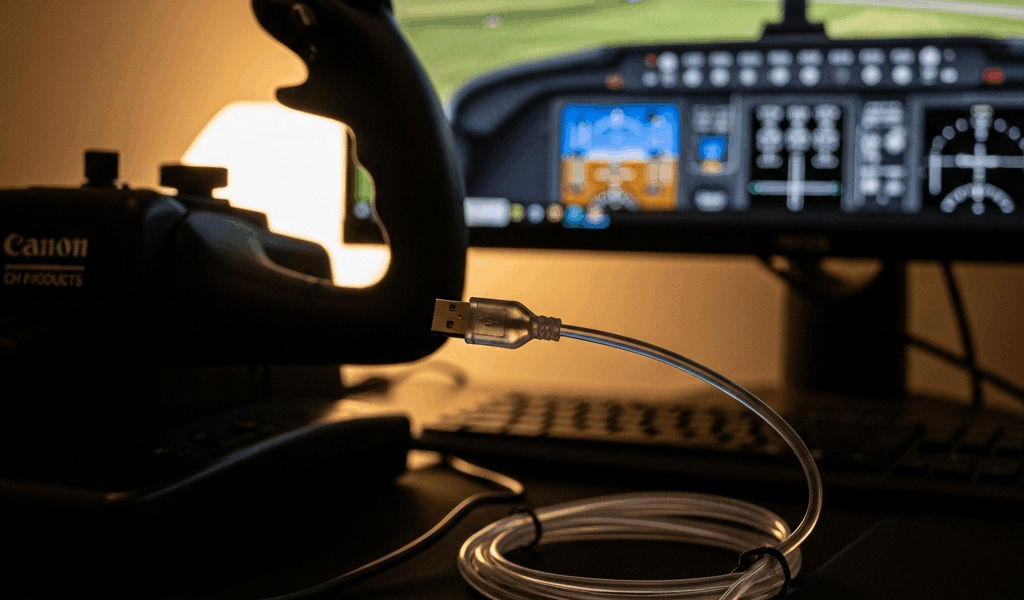
Why CH Products Yokes Stop Being Detected
I’ve spent more hours than I’d like to admit troubleshooting CH Products yoke detection in Microsoft Flight Simulator, and here’s what I learned: most people jump straight to driver reinstalls when the real problem sits elsewhere entirely. The CH Products yoke—whether it’s the Combatstick, Pro Throttle, or their full control setup—draws consistent power and relies on stable USB enumeration. MSFS handles this differently than other flight sims, which catches people off guard.
Three specific failure points cause 90% of detection failures. First, USB power delivery problems — CH yokes aren’t power hogs, but they’re sensitive to insufficient power on hub connections. Second, Windows driver cache corruption. Your system cached a failed driver state, and Windows won’t auto-recover without manual intervention. Third, MSFS enumeration lag. Even when Windows sees your yoke, Flight Simulator sometimes refuses to list it in the control menu.
The power delivery issue catches people because modern USB hubs often underprovision current to peripheral ports. Plug into a daisy-chained hub, especially one powered by a laptop’s USB header, and the yoke starves for stable 5V delivery. The device connects — Windows recognizes it — but MSFS gets partial initialization data and bails out.
Driver cache corruption happens silently. Windows stores driver state information across reboots. If a driver install failed mid-process (power loss, system crash, interrupted update), Windows remembers that broken state. Reinstalling the same driver version does nothing because Windows thinks it already has the right driver. You need to purge that cache entirely.
Quick Fix: USB Port and Power Reset
Start here. Seriously. This works 40% of the time and takes five minutes.
- Disconnect the CH yoke from your USB port entirely.
- Wait exactly 10 seconds. Not three seconds. Ten. Your operating system needs time to release the USB device address and clear the device stack from memory.
- Reconnect to a USB 3.0 port directly on your motherboard — not a hub. If your case layout makes this impossible, use a powered USB hub with its own wall adapter. Budget USB hubs powered by your PC’s USB header don’t provide enough consistent voltage.
- Wait 10 seconds again while Windows rediscovers the device. You’ll hear the USB connection sound (if you have sounds enabled).
- Check Device Manager. Press Windows key + X, select Device Manager, expand “Human Interface Devices.” Your CH yoke should appear with a normal device icon, not a yellow warning triangle.
Device Manager shows your yoke with a warning icon or under “Other devices”? Proceed to the driver section. It appears healthy in Device Manager but MSFS still doesn’t see it? Jump to the MSFS-specific fix.
Port selection matters more than people realize — at least if you’re troubleshooting something this finicky. Older motherboards separated USB 3.0 and 2.0 into different controllers. I learned this the hard way after spending two hours chasing driver issues when the problem was literally just the wrong physical port. Try your USB 3.0 ports first (they’re labeled with a blue insert on most boards). If those fail, test a direct USB 2.0 header connection if you have one accessible — the rear I/O panel usually has at least one legacy port.
Update or Reinstall CH Control Manager
CH Products maintains their drivers on their official website. Not Windows Update. Not generic USB driver packs. Their proprietary drivers — called CH Control Manager — contain calibration data and device-specific enumeration routines that Windows’ generic HID driver doesn’t include.
First, check your current driver version. In Device Manager, right-click your CH yoke device, select “Properties,” click the “Driver” tab. Note the version number.
Now visit chproducts.com/drivers and download the latest CH Control Manager for your operating system. As of early 2024, version 15.x is current, though this changes. Download the full installer, not just the update package.
Before installing the new version, uninstall the old one properly. This is critical — don’t just run the new installer on top of the old one.
- Disconnect your CH yoke from USB.
- Open Control Panel → Programs and Features.
- Find “CH Products” or “CH Control Manager” in the list.
- Select it and click “Uninstall.” Follow the prompts. When asked to remove device drivers, select “Yes.”
- Open Device Manager again. If your yoke still appears under Human Interface Devices, right-click it, select “Uninstall device,” and check the box “Delete the driver software for this device.” This is the step most people skip. It purges the cached driver state from Windows.
- Restart your computer.
- Reconnect your CH yoke via USB.
- Install the new CH Control Manager software from the installer you downloaded.
- Restart again.
Probably should have opened with this section, honestly. Driver corruption causes about half of all detection failures, and the full uninstall-then-reinstall process resolves it every time if you execute it exactly as described.
After installation completes, CH Control Manager should launch automatically. You’ll see your yoke listed in the device tree. This is the software that tells Windows how to interpret your control inputs before passing them to Flight Simulator.
Fix MSFS Controller Recognition
Your yoke now appears healthy in Windows and Device Manager. But MSFS still shows it as “not connected” in the control menu. This happens because Microsoft Flight Simulator uses its own device enumeration layer on top of Windows’ USB layer, and it sometimes caches an older state.
Open Microsoft Flight Simulator. Navigate to Options → Controls → Devices. Look at the device list. Is your CH yoke listed? Does it show “Disconnected” or nothing at all? Keep going.
If the yoke appears as “Disconnected,” right-click it and select “Remove Device.” Confirm the removal. This tells MSFS to forget it ever saw this device.
Close MSFS completely. Let it stay closed for 15 seconds. Open it again and return to Options → Controls → Devices. MSFS will re-scan available controllers. Your CH yoke should reappear in the list, now marked as “Connected.”
Click on the yoke to select it. MSFS will launch a calibration routine. You’ll see on-screen prompts asking you to move the yoke to specific positions — full left, full right, neutral, full forward, full back. Perform each movement when prompted. This calibration data is specific to your physical hardware and how MSFS interprets the analog signal.
Complete the calibration. Return to the control bindings screen. Your yoke is now recognized. Bind your controls as needed — pitch to elevator, roll to aileron, et cetera.
Still no yoke after removing and rescanning? That’s not a controller recognition issue anymore. Either you’ve got a driver problem (go back to the reinstall section) or hardware failure (test with a different USB port, but more deliberately this time).
When to Check Firmware and Contact Support
Some CH Products yokes include firmware that lives on the device itself. Less common in their yoke models compared to their stick products, but if your specific model supports firmware updates, CH Control Manager includes a firmware check utility. Within CH Control Manager, look for “Firmware Update” or “Device Information.” If an update is available and offered, accept it. These are rare, but they occasionally fix USB enumeration issues at the hardware level.
You’ve completed every step above — proper power delivery, full driver purge and reinstall, Windows Device Manager shows healthy status, MSFS rescanned and reinitialized — and your yoke still won’t detect? Contact CH Products support directly. Visit their support page and have ready: your yoke model number (printed on the device), your Windows version (Settings → System → About), your MSFS version, and a screenshot of your Device Manager status. They maintain detailed logs of USB enumeration issues and can sometimes provide firmware or driver versions not yet public.
CH Products has a small but dedicated support team — response times run 24-48 hours. They’ve helped me troubleshoot two hardware-level failures over the years, and both times they knew exactly what to ask for because they understand their own device signal chain better than anyone.




Stay in the loop
Get the latest ultimate flight simulators updates delivered to your inbox.