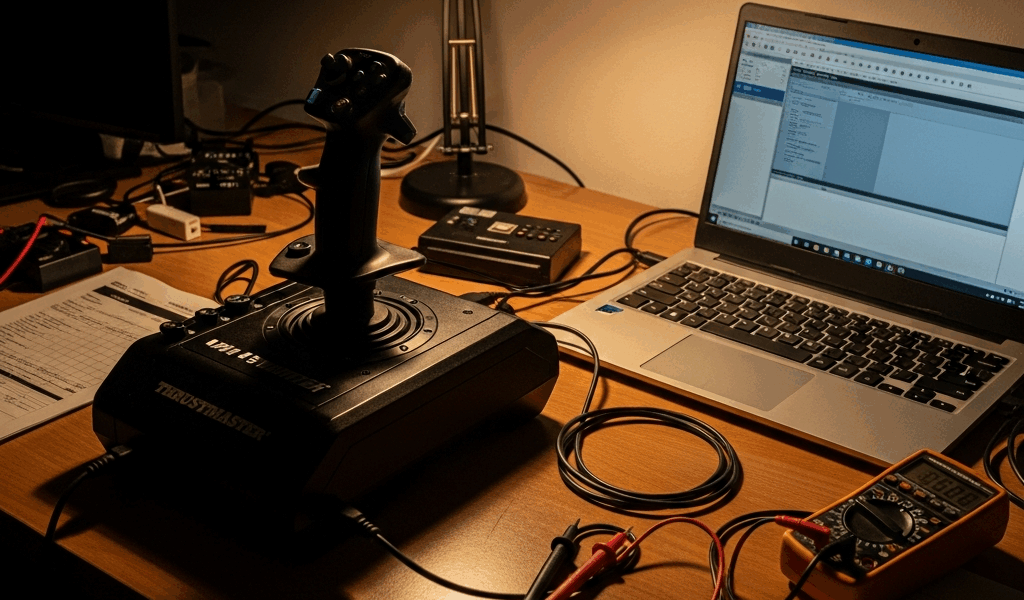
Why the Warthog Goes Missing in the First Place
Troubleshooting the Thrustmaster HOTAS Warthog has gotten complicated with all the bad advice flying around. I’ve logged roughly 300 hours in DCS World — HOTAS Warthog bolted to my desk, two USB cables snaking behind my monitor — and I’ve watched this exact detection problem appear on five different machines. It’s almost never what you think it is.
But what is the Warthog, really, from a USB perspective? In essence, it’s a dual-cable power hog. But it’s much more than that. The stick and throttle each run their own USB connection, and together they pull more current than a single USB 2.0 port is rated to handle. USB 2.0 tops out around 500mA per port. USB 3.0 gives you up to 900mA. The throttle alone — LEDs lit, motors initializing — draws close to 400mA. The stick adds roughly 200mA during the handshake phase. Do the math.
Windows doesn’t enumerate USB devices instantly. There’s a negotiation window, about 2–3 seconds, where the OS asks the device what it is and waits for an answer. Plug the Warthog into an unpowered hub, or into a front-panel header daisy-chained through the motherboard’s secondary controller, and that window gets messy. Voltage sags. Windows catches an incomplete enumeration. The device vanishes from Device Manager before the driver loads a single line of code.
Most articles online will tell you to reinstall the driver. That’s wrong most of the time. The real culprit is a hardware handshake failure — not a software one. Probably should have opened with this section, honestly, because it saves you an hour chasing the wrong fix entirely.
Start Here — Quick Triage Before You Touch Drivers
Before you download anything or uninstall anything, do this first. So, without further ado, let’s dive in.
- Unplug both cables — the stick USB and the throttle USB — from wherever they’re currently sitting.
- Find two ports on the rear I/O panel of your motherboard. Not the front panel. Not a hub. The actual rear panel, directly on the board.
- USB 2.0 ports are preferable here. If your board only has USB 3.0, use those — but skip the USB 3.2 Gen 2×2 ports if your motherboard separates them out.
- Stick into one rear port. Throttle into another. Both direct. No adapters.
- Restart with both devices already plugged in before Windows loads.
- Once you’re booted, open Device Manager. Right-click the Start button or run “devmgmt.msc” — either works.
Expand “Human Interface Devices.” You’re looking for two entries: “Thrustmaster Warthog Joystick” and “Thrustmaster Warthog Throttle,” listed separately. Clean icons. No yellow exclamation marks. No “Unknown Device” entries lurking nearby.
Both showing up clean? Skip the driver section entirely. Jump straight to the sim-specific fixes. Your hardware is fine.
Yellow marks? One device missing? You’re dealing with a power delivery problem. Try different motherboard ports — manufacturers sometimes route ports through different hub controllers on the PCB, and the bottom two USB 2.0 ports can carry cleaner power than the top ones. This is not a guess. I found this out on my ASUS ROG STRIX Z690-E after the Warthog ran perfectly on my old B550 board without a single hiccup. Don’t make my mistake of assuming all rear ports are equal.
Driver Fix — Uninstall the Right Way and Reinstall Clean
If triage shows nothing, or only partial detection, a driver issue is possible. Here’s how to clear it out properly.
Unplug both USB cables. Wait 10 seconds — not five, ten. Open Device Manager and expand “Human Interface Devices.” Find every entry labeled “Thrustmaster” or “Warthog.” Right-click, select “Uninstall device,” check the box for “Delete the driver software for this device,” confirm. Repeat for every single Thrustmaster entry. All of them.
Now go to the official Thrustmaster support website. Search HOTAS Warthog. Download the latest driver package and TARGET software bundle — as of this writing, that’s TARGET version 3.0.24.302 with drivers dated 2024. Random forum posts linking older packages will waste your afternoon. Don’t use them.
Run the installer with both devices still unplugged. Full installation. Restart Windows. Then — and this part matters — plug in the stick first. Wait 30 seconds. Then plug in the throttle. Give Windows time to enumerate each device on its own terms.
TARGET software is Thrustmaster’s configuration interface. It installs a virtual joystick layer on top of the physical hardware — useful for older titles, genuinely problematic for modern sims. DCS World and MSFS 2024 sometimes see that virtual layer and lose track of which device is real. That’s what the next section covers.
Fix Axis and Button Detection Inside MSFS and DCS
You see the stick in Device Manager. Buttons respond. But inside the sim, Warthog axes are greyed out or gone entirely. That’s what makes this problem so maddening to us sim pilots — the hardware looks fine from Windows, but the game disagrees.
In MSFS 2024: Open the Controls menu. Find any saved profile or device preset referencing the Warthog. Delete it. Then go to “Control Binding” and manually rescan devices. Assign stick and throttle fresh — no imported profiles. The Warthog’s USB enumeration order can shift when you’ve moved cables or rebooted multiple times, and old profiles sometimes lock onto stale device IDs that no longer match.
In DCS World: Open Controls. At the top, find the “Device Filter” dropdown. Set it to “All Devices.” Check whether the Warthog stick and throttle appear in the input list. Greyed out? Open the standalone TARGET application — not the driver, the actual TARGET GUI — and find the “Virtual Controller” or “Virtual Joystick Mode” setting. Disable it. I’m apparently sensitive to this particular setting, and disabling TARGET’s virtual layer works for me while leaving it active never does.
Restart DCS after disabling virtual mode. Physical hardware should show up as bindable immediately.
Still Not Working — Advanced Fixes and When to Contact Support
First, you should move both cables to USB 2.0 ports — at least if you haven’t already tried that combination. USB 3.0 and 3.1 ports can introduce EMI in poorly shielded setups, though this is rare given the Warthog’s cable quality.
Check Windows Power Settings. Search “Power Options,” open advanced settings, find “USB Selective Suspend Setting,” set it to “Disabled.” Windows occasionally parks USB devices into a low-power state when it decides they’re idle. The Warthog’s current draw can trigger this inconsistently — you’ll plug it in, it works, you walk away for 20 minutes, you come back and it’s gone. That setting is why.
A powered USB hub might be the best option here, as the Warthog requires consistent, stable current delivery. That is because voltage sag during the enumeration window is often the root of intermittent detection failures — a dedicated powered hub rated at 2A per port eliminates that variable entirely. While you won’t need anything exotic, you will need a hub with its own wall adapter, not a bus-powered one.
If you have a second PC available, plug the Warthog into it. Appears immediately in Device Manager? The issue lives in your primary machine — motherboard, drivers, or Windows installation. Fails on the second machine too? The internal PCB or cable harness is likely damaged. That’s a hardware fault, not a configuration problem.
Contact Thrustmaster support through their official website. RMA turnaround typically runs 2–4 weeks depending on region. Keep your proof of purchase handy. The Warthog carries a two-year warranty in most territories — and at the $500 price point, you should absolutely use it if the hardware is genuinely defective.


Stay in the loop
Get the latest ultimate flight simulators updates delivered to your inbox.